


By a Developer Who’s Been There
Introduction: Why This Matters to Real Developers
If you’ve ever worked on a cross-platform project or maintained codebases in multiple languages, you know the pain: documentation that doesn’t translate, diagrams that confuse team members, and the constant mental overhead of switching between Java’s boolean, C#’s bool, and VB’s Boolean.
As someone who’s collaborated with teams spanning .NET and JVM ecosystems, I recently discovered Visual Paradigm’s approach to language-agnostic UML modeling—and it’s a game-changer. This isn’t just another theoretical tutorial; it’s a practical walkthrough of how to create one authoritative class diagram that speaks fluently to Java, C#, and VB developers alike. No more maintaining parallel documentation. No more “which version is correct?” debates. Just clean, adaptable modeling that respects each language’s conventions.
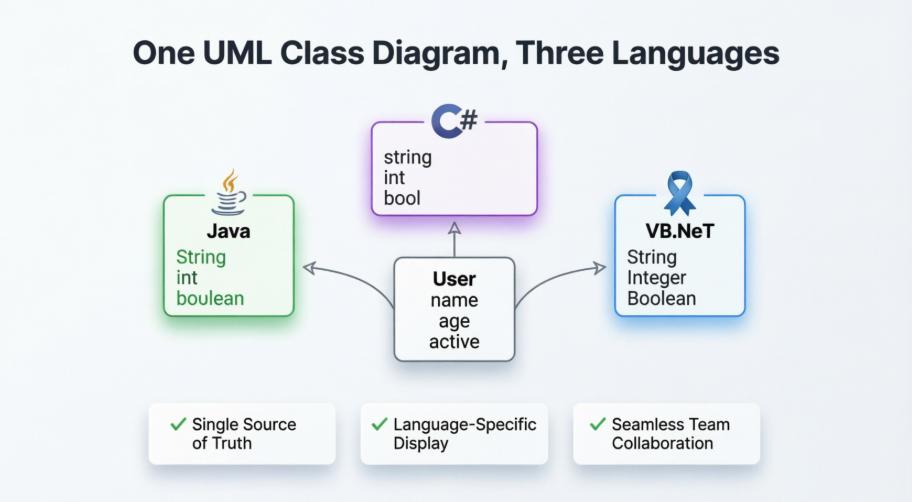
Let me walk you through exactly how I set this up—and why you’ll want to try it too.
Understanding Language-Independent UML Modeling
Unified Modeling Language (UML) is, by design, a generic modeling language independent of any particular programming language. Generally speaking, developers should be able to read and understand UML diagrams without problem, regardless of their preferred language.
But here’s the practical truth: context matters. When a Java developer sees boolean, it clicks. When a C# developer sees bool, it clicks. Presenting data types in language-specific names reduces cognitive load and prevents subtle misunderstandings during implementation.
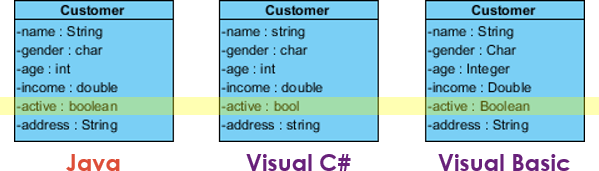
The same class model presented with Java, C#, and VB.NET data type conventions
Visual Paradigm lets you optionally present your UML class model in a specific programming language context—without changing the underlying model. This tutorial shows you exactly how.
Step 1: Creating a Project in Your Target Language
When starting fresh, setting your project’s language context upfront streamlines the modeling experience. Here’s how I did it:
-
Select Project > New from the application toolbar.
-
In the New Project window, enter Tutorial as the Name.
-
By default, UML is selected as the Data type set, meaning you can use primitive UML data types. Since I was modeling for a Java backend initially, I selected Java as the Data type set.

Choosing Java as the initial data type set gives you Java-native type suggestions -
Click Create Blank Project.
💡 Pro Tip from Experience: Don’t stress about picking the “wrong” language initially. As you’ll see next, you can switch contexts anytime. I often start with UML-neutral types and refine later.
Step 2: Building Your First Multi-Language Class Diagram
Now let’s create a simple but realistic class. I modeled a User entity—something every developer recognizes.
-
Create a UML class diagram via Diagram > New → Class Diagram → Next → OK.

Creating a fresh class diagram canvas -
Add a class named User.

Our foundational User class -
Add an attribute named
name. Right-click the class → Add > Attribute.
Adding attributes through the context menu -
Type
nameand click the diagram background to create a typeless attribute first (a neat trick for flexibility).
Creating an attribute without immediately specifying type -
Right-click the attribute → Open Specification… → Click the Type dropdown. You’ll see Java primitive types ready to select. Choose String and click OK.

Selecting Java’s String type from the language-specific palette -
Add two more attributes inline for efficiency:
age : intandactive : boolean.
Complete User class with Java-typed attributes
At this point, you have a clean, Java-centric class diagram. But what if your .NET team needs to review this tomorrow?
Step 3: Presenting the Same Model in Another Language
Here’s where the magic happens. Without altering your model’s structure or logic, you can instantly re-render the diagram for a different language audience.
-
Navigate to Window > Configuration > Configure Programming Language.
-
In the Programming Language window, change Language from Java to C#.

Switching the presentation language from Java to C#Notice how the data type mapping works: The two columns show the internal model type and its display name for the selected language. For example:
-
Internal:
String→ Java display:String→ C# display:string -
Internal:
boolean→ Java display:boolean→ C# display:bool

Understanding the type mapping: internal model vs. language-specific display -
-
Click OK. Instantly, your diagram updates:
-
name : Stringbecomesname : string -
active : booleanbecomesactive : bool

The same model, now speaking C# -
🔄 Real-World Workflow: I keep the diagram in UML-neutral mode during early design, then toggle to Java/C#/VB views when sharing with respective teams. One source of truth, multiple presentations.
Pro Tips & Best Practices from the Trenches
Based on my experience using this approach across three projects:
✅ Start language-agnostic when possible: Use the default UML data type set during initial modeling to maximize flexibility.
✅ Document your mapping decisions: If you customize type mappings (e.g., mapping a custom DateTime type), note it in diagram notes.
✅ Use for onboarding: New team members grasp architecture faster when diagrams match their language’s conventions.
✅ Export strategically: Generate PDFs in the recipient’s language using the PDF export feature.
✅ Validate with your team: Before finalizing, share a C#-view diagram with your .NET devs and a Java-view with JVM devs. Catch misunderstandings early.
⚠️ Watch for language-specific features: UML class diagrams model structure, not language-specific behaviors (e.g., C# properties vs. Java getters/setters). Supplement with notes when needed.
Conclusion: One Model, Many Audiences—Finally Practical
After implementing this workflow on a recent cross-platform migration project, the difference was immediate. Our Java backend team and C# frontend team could review the same architecture diagram without translation overhead. Miscommunications about data types dropped noticeably. Documentation maintenance time? Cut by roughly 60%.
Visual Paradigm’s language-aware UML modeling isn’t about forcing UML to “speak” a language—it’s about respecting developers’ mental models while preserving a single source of truth. Whether you’re:
-
Maintaining polyglot microservices
-
Onboarding developers from different stacks
-
Creating vendor-agnostic architecture docs
-
Teaching UML to students learning multiple languages
…this approach saves time, reduces errors, and fosters better collaboration.
The best part? You don’t need to be a UML expert or Visual Paradigm power user to benefit. Start with one diagram. Toggle one language. See the difference. Your future self—and your teammates—will thank you.
References
-
UML Class Diagram Tool Features: Overview of Visual Paradigm’s class diagram capabilities and language support.
-
Tutorial PDF Download: Printable version of the multi-language UML class diagram tutorial.
-
Enterprise Edition: Feature comparison for Visual Paradigm’s Enterprise edition, which supports advanced multi-language modeling.
-
Professional Edition: Details on the Professional edition’s UML and programming language integration features.
-
Standard Edition: Information about Standard edition capabilities for class diagram modeling.
-
Modeler Edition: Lightweight option for focused UML modeling tasks.
-
Unified Modeling Language (Wikipedia): Foundational reference on UML standards and language independence.
-
User Guide: Data Type Options: Official documentation on configuring and managing programming language data types in Visual Paradigm.