
Introduction
As a business process grows, showing every task, decision, and exception in one diagram can make it difficult to follow. A BPMN subprocess helps manage that complexity by grouping related activities into a single activity in the parent process. Readers can first see the high-level flow, then inspect the subprocess’s internal steps when they need more detail.
This guide explains collapsed and expanded subprocesses, when to use each view, key related concepts, and how to build them in Visual Paradigm.
What is a BPMN subprocess?
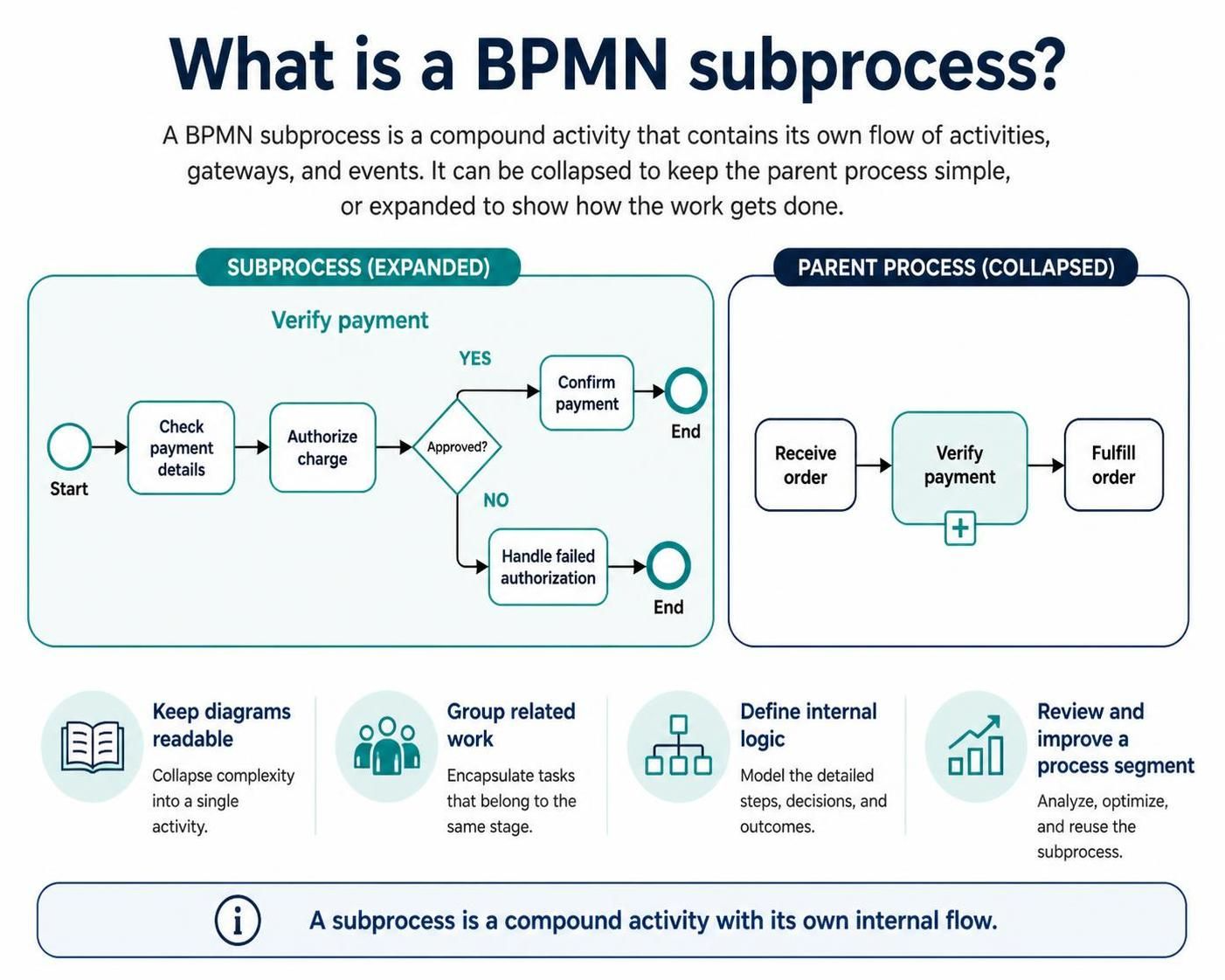
A subprocess is a compound activity: a group of activities that forms a meaningful part of a larger process. For example, an order-handling process might include a Verify payment subprocess containing steps to check payment details, authorize a charge, and handle a failed authorization.
Subprocesses help you:
-
Keep an overview diagram readable.
-
Group steps that belong together.
-
Give a complex process segment its own logic and boundaries.
-
Make it easier to discuss, review, and improve one part of a process at a time.
A subprocess is more than a visual container: the activities inside it have their own sequence flow and can include events and gateways.
Collapsed and expanded views
| View | What it shows | Best used when |
|---|---|---|
| Collapsed | A single rounded rectangle with a small + marker indicating hidden detail | You want to emphasize the parent process and keep the diagram compact |
| Expanded | A larger subprocess boundary containing its internal flow | Readers need to inspect or explain the subprocess’s steps in context |
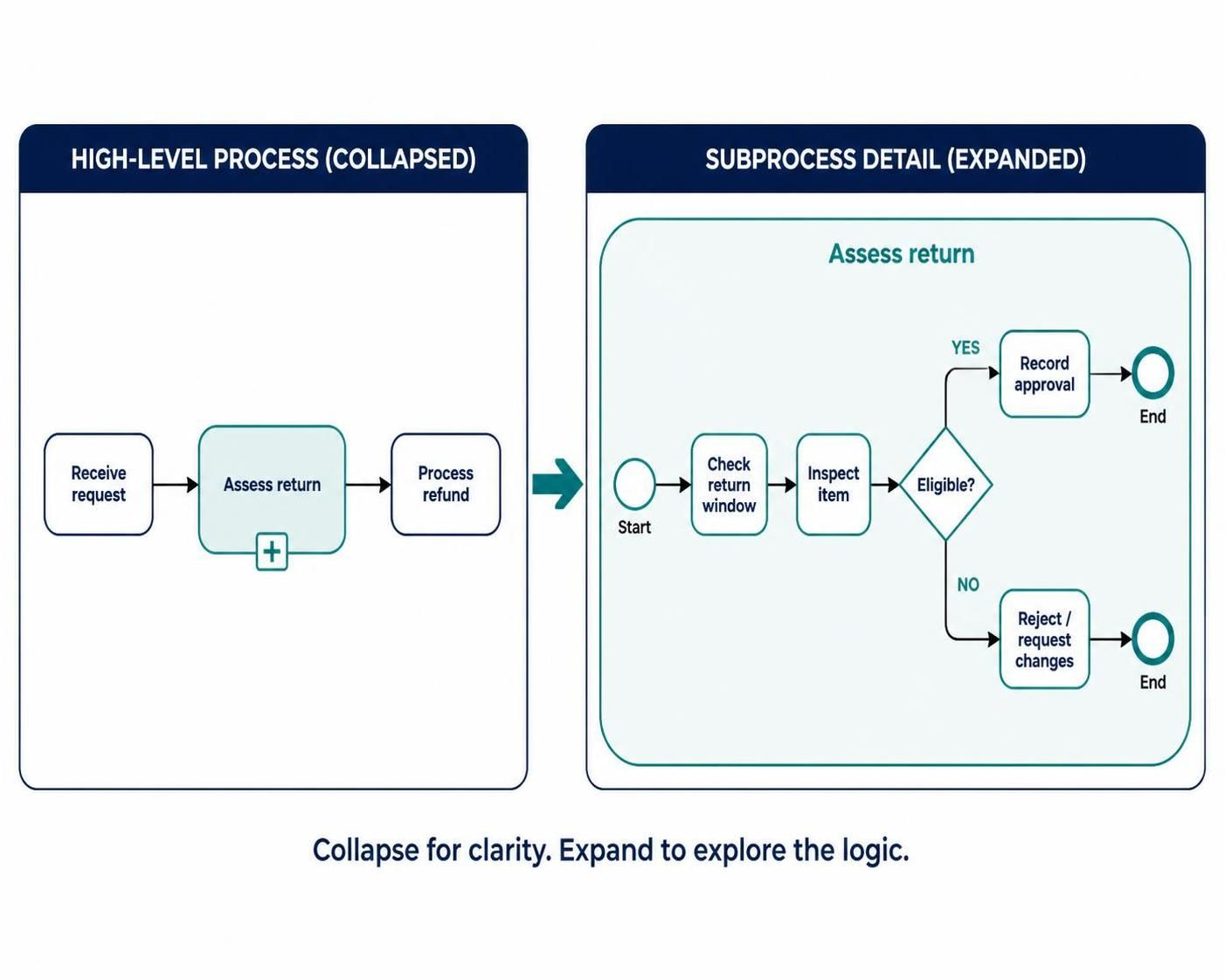
The two views show the same subprocess at different levels of detail. Collapsing it hides the internal flow from the parent diagram; expanding it reveals that flow within the subprocess boundary. The subprocess’s logic remains part of the model.
Example: Process a customer return
At the parent level, the process might look like this:
Receive return request → Assess return → Process refund → Close case
The collapsed Assess return subprocess keeps the overview uncluttered. Expanded, it could show:
Check return window → Inspect item condition → [Eligible?] → Record decision
The gateway makes the decision visible: an eligible item continues to the next step, while an ineligible one follows a rejection or exception path.
Key concepts
Embedded subprocess: A subprocess defined within its parent process. It is useful for grouping work that belongs to one process, but it is not itself a reusable process definition.
Call activity: A BPMN activity that invokes a separately defined, reusable process. Use it when the same process logic—such as identity verification—must be called from multiple processes. It is distinct from an embedded subprocess.
Sequence flow: The solid connector that shows the order in which activities and events occur within a process or subprocess. The internal flow belongs inside the subprocess; the parent process connects to the subprocess as a single activity.
Subprocess boundary: The enclosing shape that defines which activities are inside the subprocess. Its start and end events describe the internal flow; the parent’s incoming and outgoing sequence flows connect to the subprocess activity.
Gateway: A decision or control point inside a subprocess, such as an exclusive gateway that routes work down one path based on a condition.
Specialized subprocesses: BPMN also includes forms for particular modeling needs, such as event subprocesses (triggered by an event), ad-hoc subprocesses (flexible task ordering), and transaction subprocesses (transaction-oriented behavior). Choose these for their specific semantics, not merely to make a diagram look different.
When to collapse or expand

Choose a collapsed view when:
-
You are presenting the end-to-end process to an audience that needs the main stages.
-
The internal steps are not relevant to the current discussion.
-
Showing every detail would make the parent diagram hard to read.
Choose an expanded view when:
-
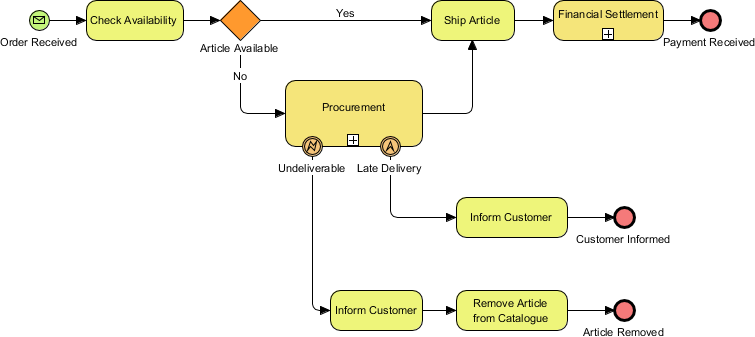
You are reviewing the subprocess’s internal logic.
-
The sequence of tasks, decisions, or exceptions matters to the discussion.
-
Stakeholders need to see how the subprocess fits into the parent flow without switching diagrams.
Avoid expanding every subprocess at once. The parent diagram can become crowded, and layout changes may make relationships harder to follow. A useful modeling practice is to keep the overview concise and reveal detail selectively.
Example: Review and approve a purchase
At the overview level:
Submit request → Review and approve request → Place order
The collapsed Review and approve request subprocess represents a single stage. Expanded, it might contain:
-
Validate request details.
-
Check budget.
-
Route for approval.
-
Receive the approval decision.
-
Continue to ordering if approved, or return the request for changes if not.
This separates the summary from the operational detail while preserving a clear connection between them.
Creating and viewing subprocesses in Visual Paradigm
Visual Paradigm’s documented workflow supports creating subprocesses from a task and building a deeper process layer. Menu labels and interface details can vary by edition or version.
-
Create a business process diagram and add the parent flow, including a task that should become a subprocess.
-
Use the task’s Resource Catalog to create a connected subprocess, or select existing flow objects and use the context-menu option to form a subprocess.
-
Name the subprocess with a clear action or outcome, such as Assess return or Validate order.
-
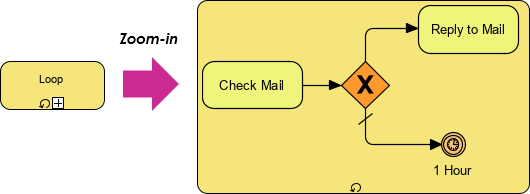
To add internal detail, use the subprocess’s + control and choose New Business Process Diagram. Build the internal flow with its own start and end events, tasks, gateways, and sequence flows.
-
Return to the parent diagram and check that the subprocess connects correctly to the surrounding activities.
-
If useful, use the available Expand Sub-Process Preview option to show a preview of the contents in the parent diagram. This is a preview feature; it is not the same as changing the BPMN element’s expanded representation.
-
Review the diagram at both levels: confirm the parent flow is easy to understand and that the internal flow has a clear start, finish, and decision logic.
Visual Paradigm also documents forming a subprocess from selected tasks, either in the same diagram or as a separate subprocess diagram. This can be useful when a process already exists and you want to group part of it rather than draw the internal flow from scratch.
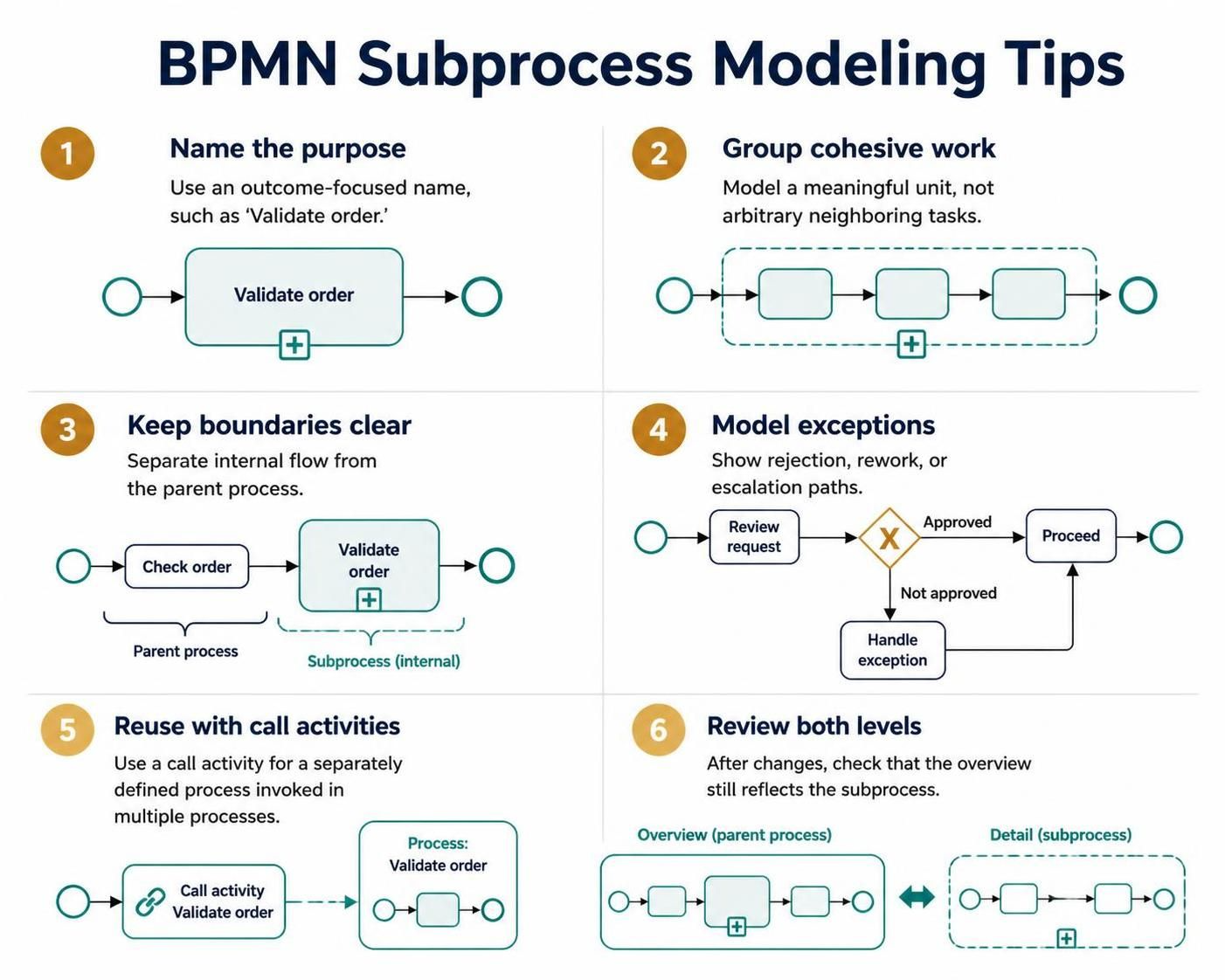
Modeling tips
-
Name the outcome or purpose. “Validate order” communicates more than “Order steps.”
-
Group cohesive activities. A subprocess should represent a meaningful unit of work, not an arbitrary collection of neighboring tasks.
-
Keep boundaries clear. Ensure readers can distinguish the subprocess’s internal flow from the parent process.
-
Model exceptions deliberately. If a decision can lead to rejection, rework, or escalation, show the appropriate path rather than implying that every case follows the same route.
-
Use call activities for genuine reuse. If multiple processes invoke the same separately defined process, a call activity is generally the appropriate BPMN construct.
-
Check both levels after changes. Changes inside a subprocess can affect whether its summary still accurately describes what happens.
Conclusion
Collapsed and expanded subprocesses let a BPMN model present both a concise overview and a detailed explanation of complex work. Use the collapsed view to keep the parent process readable, and expand the subprocess when its internal flow matters. In Visual Paradigm, you can create a subprocess from a task or existing activities, add a deeper process diagram, and use a preview when a quick visual reference is helpful. The best result is a model whose structure makes sense at both levels.