


Introduction: Why I Decided to Test OpenDocs
As someone who has tested dozens of documentation and knowledge management tools—from Notion to Confluence to Obsidian—I approach new platforms with a healthy dose of skepticism. When I first heard about Visual Paradigm OpenDocs, an AI-powered knowledge base that promises to merge rich editing with professional diagramming in a single workspace, I was intrigued but cautious. Could it really deliver on the promise of being a “single source of truth” without becoming bloated or complicated?
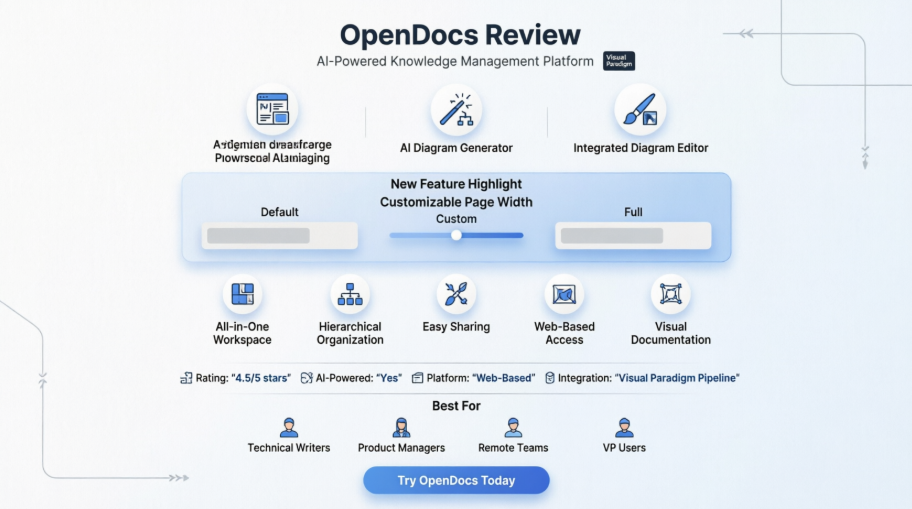
Over the past few weeks, I’ve put OpenDocs through its paces: building a sample project documentation hub, testing its AI diagram generation, experimenting with the new customizable page width feature, and evaluating its collaboration capabilities. This review shares my hands-on experience, honest pros and cons, and practical insights for anyone considering OpenDocs for their personal or team knowledge management needs.
First Impressions: Clean, Intuitive, and Web-Ready
From the moment I launched OpenDocs via the web app, the interface felt refreshingly focused. There’s no overwhelming dashboard or complex onboarding—just a clean sidebar for navigation and a central workspace. As a user who values minimal friction, I appreciated that I could create my first page within seconds.
Core Features Through a User’s Lens
Integrated Diagram Editor: Where OpenDocs Truly Differentiates
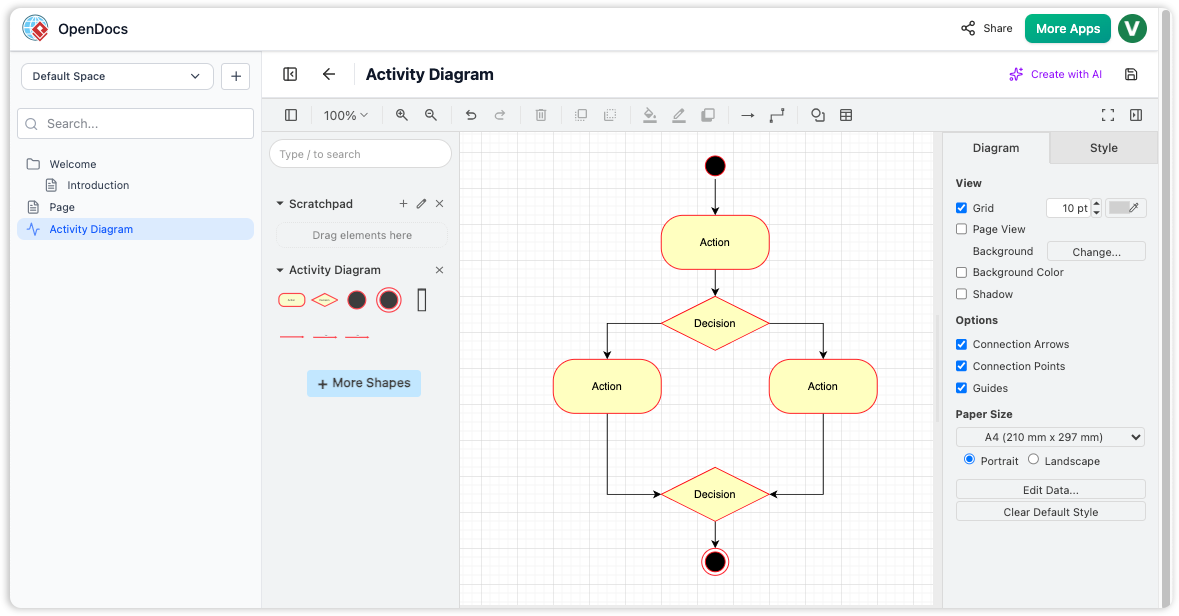
OpenDocs interface showing the integrated diagram editor with a sample Activity Diagram featuring actions, decisions, and flow connectors.
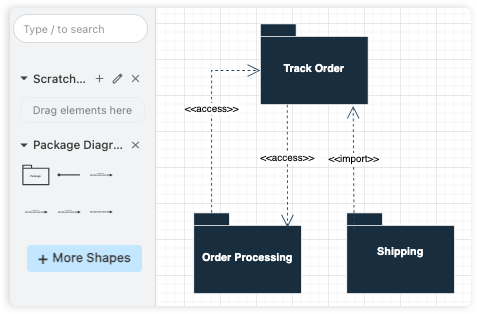
This is where OpenDocs moved from “nice-to-have” to “must-consider” for me. Most knowledge bases treat diagrams as afterthoughts—requiring external tools, screenshots, or clunky embeds. OpenDocs flips this by embedding a professional-grade diagram editor directly into the page.
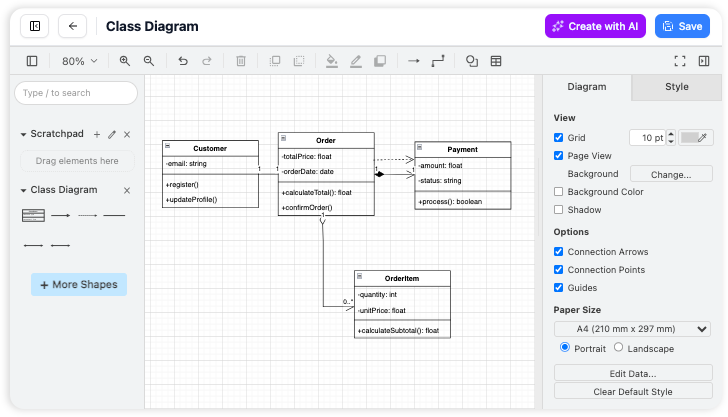
I created a simple flowchart for a user onboarding process without leaving my document. The shape library is extensive (UML, flowcharts, mind maps, ERDs), connectors snap intuitively, and styling options let me match my team’s branding. For technical writers, product managers, or engineers who need to illustrate processes alongside explanations, this integration is transformative.
AI-Powered Diagram Generation: The “Magic” Moment
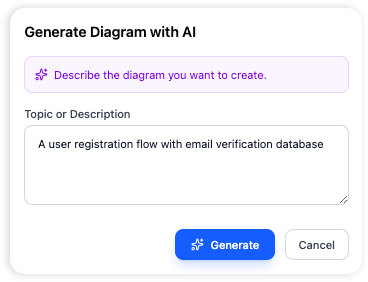
The claim that you can go “from a sentence to a diagram instantly” sounded too good to be true. I tested it by typing: “Show me a user login process with validation, error handling, and success redirect.”
Within seconds, OpenDocs generated a clean, logically structured flowchart. While I did tweak a few labels and adjust spacing, the AI saved me 15-20 minutes of manual drafting. For rapid prototyping, brainstorming sessions, or documenting legacy processes, this feature is a genuine productivity booster. It’s not perfect for highly complex diagrams, but for 80% of everyday use cases, it delivers remarkable value.
Hierarchical Organization: Keeping Knowledge Structured
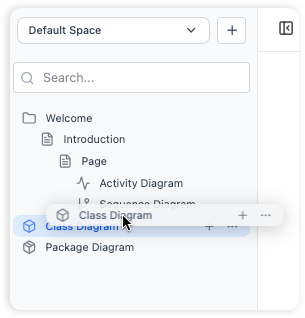
Organization: Organize your documents and diagrams in a familiar tree-like structure with nested folders.
As my test knowledge base grew to 30+ pages, the nested folder structure became essential. Drag-and-drop reorganization felt natural, and the visual hierarchy made navigation intuitive. Unlike some tools that rely solely on tags or search, OpenDocs’ folder tree provides the spatial context I need when managing multi-project documentation.
The New Flexible Page Width Feature: A Game-Changer for Readability
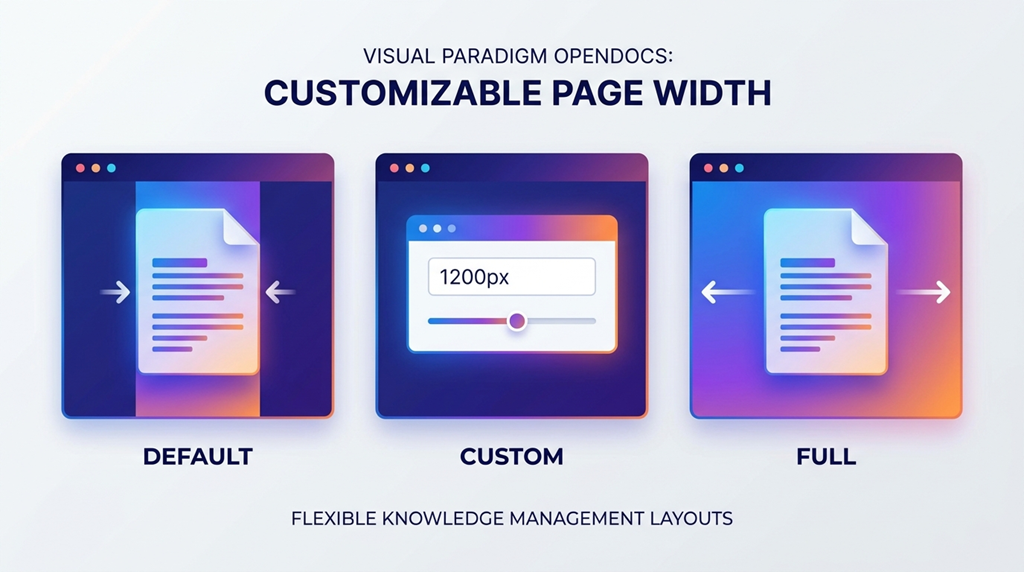
Visual Paradigm recently added Customizable Page Width, and after testing it, I consider this a thoughtful enhancement that addresses a real pain point.
My testing experience:
- Default width: Perfect for long-form text. Line lengths stayed within the 45-75 character “readability sweet spot,” reducing eye strain during extended reading sessions.
- Full width: When embedding a wide architecture diagram or data table, switching to full width eliminated horizontal scrolling—a small change with a big impact on user experience.
- Custom width: I set a specific pixel value (1400px) for a client-facing documentation page to match their brand guidelines. The precision control is a nice touch for professional presentations.
How to adjust (tested and confirmed):
- Edit your page in OpenDocs
- Click the Setting icon in the top navigation bar
- Under Width Setting, choose Default, Full, or enter a Custom pixel value
This feature exemplifies user-centric design: it doesn’t add complexity but gives power users the flexibility they need.
Key Benefits: What Actually Matters in Daily Use
After weeks of use, these are the benefits that consistently delivered value:
✅ All-in-One Workflow: No more switching between a text editor, a diagramming tool, and a file organizer. Having text and visuals in one place reduced context-switching fatigue.
✅ Structure Without Rigidity: The folder hierarchy provided organization without forcing a rigid taxonomy. I could adapt the structure as my project evolved.
✅ Effortless Sharing: Generating a read-only link to share my entire knowledge base took two clicks. For stakeholder reviews or client handoffs, this simplicity is invaluable.
✅ Visually Rich Documentation: Embedding professional diagrams directly in documentation elevated the perceived quality of my work—and made complex concepts easier to communicate.
✅ Zero Installation, Universal Access: Being web-based meant I could access my knowledge base from my office desktop, home laptop, or even a tablet while traveling—no syncing headaches.
Workflow Integration: The “Pipeline” Advantage
One feature that sets OpenDocs apart in the Visual Paradigm ecosystem is the Pipeline integration. While I primarily used OpenDocs as a standalone tool, I tested sending a diagram from Visual Paradigm Online into my OpenDocs workspace.
The process was seamless: create a diagram in Visual Paradigm Online → use the “Export to OpenDocs” option → the diagram appeared instantly in my chosen folder, ready to embed. For teams already using Visual Paradigm for modeling, this creates a powerful end-to-end workflow from design to documentation.
Honest Limitations: What to Consider Before Committing
No tool is perfect, and transparency matters. Here are limitations I encountered:
⚠️ No Direct Import: You can’t bulk-import existing Word files. Content must be created or pasted manually within OpenDocs. For teams migrating large documentation sets, this could be a hurdle.
⚠️ Export Constraints: Documents can’t be exported to PDF or Word directly. Sharing happens via web link or WordPress integration. If offline distribution is critical, this requires workarounds.
⚠️ No Built-in Version History: OpenDocs doesn’t track document revisions internally. I mitigated this by maintaining periodic backups of critical pages—a minor inconvenience but worth noting.
⚠️ Sharing Granularity: You share the entire knowledge base, not individual pages. For projects requiring strict access controls per document, this may not meet enterprise security needs.
⚠️ Learning Curve for Advanced Diagramming: While basic diagrams are intuitive, mastering advanced UML or ERD features may require referencing Visual Paradigm’s documentation.
Who Is OpenDocs Best For?
Based on my experience, OpenDocs shines for:
🎯 Technical Writers & Product Managers: Who need to combine explanatory text with process diagrams, user flows, or system architectures.
🎯 Small to Mid-Sized Teams: Seeking a centralized, visually rich knowledge base without enterprise-level complexity.
🎯 Visual Paradigm Users: Who want to extend their modeling work into living documentation with minimal friction.
🎯 AI-Curious Professionals: Who want to experiment with AI-assisted diagram generation without investing in specialized tools.
🎯 Remote/Hybrid Teams: Who benefit from web-based, zero-installation access and simple link sharing.
It may be less ideal for:
- Organizations requiring granular page-level permissions
- Teams with massive existing documentation libraries needing bulk import
- Users who primarily need offline document exports
Conclusion: A Thoughtful Tool That Earns Its Place
After extensive hands-on testing, Visual Paradigm OpenDocs has earned a spot in my recommended toolkit for knowledge management. It doesn’t try to be everything to everyone; instead, it excels at a specific, valuable niche: unifying rich text documentation with professional visual modeling in an intuitive, AI-enhanced workspace.
The recent addition of customizable page width demonstrates that the development team listens to user needs and iterates thoughtfully. While limitations exist—particularly around import/export and versioning—the core experience of creating, organizing, and sharing knowledge is polished and productive.
If you’re tired of juggling multiple tools to produce documentation that’s both informative and visually compelling, OpenDocs deserves a trial. The web-based access means there’s no risk in testing it, and for many users, the time saved on diagram creation and content organization will quickly justify adoption.
Final Verdict: 4.5/5 stars — A powerful, focused platform that delivers on its promise of being a true “knowledge hub,” especially for visually-oriented documentation workflows.
👉 Try OpenDocs and test the customizable page width feature yourself
References
- OpenDocs: AI-Powered Knowledge Platform Launch: Official announcement introducing OpenDocs as Visual Paradigm’s AI-powered knowledge management and documentation platform, detailing core capabilities and value proposition.
- Export OpenDocs to WordPress: Guide on integrating OpenDocs documentation with WordPress sites for seamless content publishing and external sharing.
- Sync AI Diagrams to OpenDocs via Pipeline: Step-by-step tutorial for using the Pipeline feature to transfer AI-generated diagrams from Visual Paradigm tools directly into OpenDocs workspaces.
- AI Flowchart Generator Update for OpenDocs: Feature update detailing enhancements to OpenDocs’ AI-powered flowchart creation, including improved accuracy and new template options.
- AI EPC Diagram Generator: Event-Driven Process Chains: Introduction of AI support for generating Event-Driven Process Chain (EPC) diagrams within OpenDocs for business process documentation.
- AI Deployment Diagram Generator for OpenDocs: Feature spotlight on using AI to automatically create UML Deployment Diagrams for infrastructure and system architecture documentation.
- AI Entity-Relationship Diagram (ERD) Generation: Guide to leveraging OpenDocs’ AI capabilities to generate database schema visualizations and ERDs from textual descriptions.
- Visual Paradigm Online to OpenDocs Export: Documentation on exporting diagrams and models from Visual Paradigm Online directly into OpenDocs for integrated documentation workflows.
- AI Diagram to OpenDocs Pipeline Integration: Overview of the seamless integration allowing AI-generated diagrams from Visual Paradigm’s chatbot to be pushed directly into OpenDocs projects.
- Share Visual Paradigm Flipbooks to OpenDocs: Feature guide for embedding interactive flipbook presentations created in Visual Paradigm into OpenDocs documentation pages.
- Digital Bookshelf Integration with OpenDocs: Tutorial on organizing and sharing curated resource collections via Digital Bookshelf embedded within OpenDocs pages.
- Video Tutorial: Sending Slideshows to OpenDocs: Step-by-step video guide demonstrating how to export and embed slideshow presentations from Visual Paradigm Online into OpenDocs documentation.