


As a Product Manager with over seven years of experience in roadmapping, user research, and product design, I’ve always believed that clear communication is the backbone of successful product development. Diagrams are essential for this, but traditional diagramming tools often feel clunky, requiring too much manual dragging and dropping. Recently, I explored VPasCode, an AI-powered, browser-based “Diagram-as-Code” platform developed by Visual Paradigm. When paired with their AI Chatbot, it promises a seamless way to generate complex system diagrams using nothing but natural language. Here is my comprehensive review of the workflow and experience.
Introduction: Why Diagram-as-Code Matters for Modern Teams
In today’s fast-paced tech environment, especially for those of us managing hybrid teams in the SF Bay Area or working remotely, documentation needs to be agile. Traditional GUI-based diagramming tools can become bottlenecks when you need to iterate quickly on system architectures or user flows.
VPasCode shifts the paradigm by treating diagrams as code. This approach allows for version control, easier collaboration, and rapid iteration. By integrating an AI chatbot that understands natural language prompts, Visual Paradigm has created a tool that bridges the gap between technical precision and creative ease. Whether you are defining a new feature flow or documenting legacy systems, this toolset aims to reduce the friction between idea and visualization.
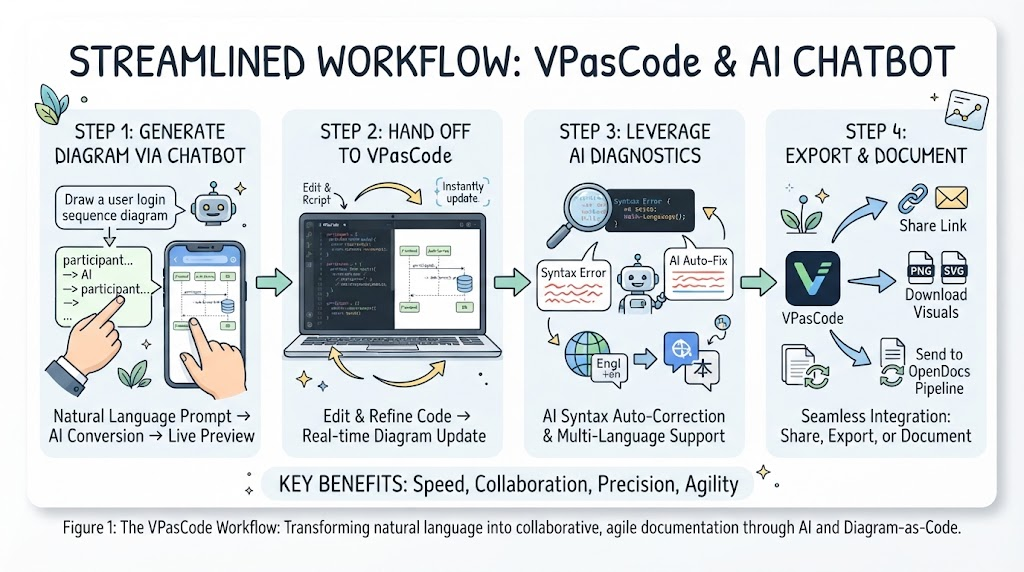
Step 1: Generate the Diagram in the Chatbot
The journey begins with simplicity. You don’t need to know any syntax to get started.
-
Open the Chatbot: You can access the Visual Paradigm Online Chatbot directly through your browser or integrate it into the desktop software by navigating to Tools > Chatbot. This flexibility is great for users who prefer different working environments.
-
Describe Your Idea: The core interaction is conversational. Simply write a natural language prompt explaining what you want to visualize. For instance, I tested it with: “Draw a sequence diagram for a user login flow involving a frontend, an authentication service, and a database.” The AI interprets the entities and relationships instantly.
-
Review the Preview: Within seconds, the AI chatbot generates the underlying diagram code (supporting standards like PlantUML or Mermaid syntax) and renders a live visual preview directly in the chat window. This immediate feedback loop allows you to verify if the AI understood your intent before moving to detailed editing.
Step 2: Hand Off to VPasCode for Detailed Editing
Once the initial structure is generated, the real power of VPasCode comes into play for refinement.
-
Click “Open in VPasCode”: Located directly beneath the chatbot’s rendered diagram, this button acts as a bridge. Clicking it transfers your diagram directly into the full VPasCode Workspace.
-
Edit the Code: The interface splits into two intuitive panes. On the left, you have the editable script code; on the right, you see the interactive, real-time diagram rendering. As you type, the diagram updates instantly. This dual-pane view is crucial for maintaining context while making precise adjustments.
-
Refine and Add Styles: You aren’t limited to the AI’s initial output. You can manually tweak lines of code to adjust logic or change visual style parameters, such as altering line orientations, colors, or adding new components. This level of control ensures the final diagram meets professional documentation standards.
Step 3: Leverage Built-In AI Diagnostics
One of the biggest hurdles in “Diagram-as-Code” tools is syntax errors. VPasCode addresses this with intelligent assistance.
-
AI Code Error Fixing: If you make a typo or break the script formatting while customizing your diagram, the built-in AI Auto-Fix feature scans your code in real-time. It catches and repairs broken syntax on the spot, saving you from frustrating debugging sessions.
-
AI Translation: For global teams, communication barriers can hinder clarity. VPasCode includes an AI translation engine that automatically swaps text labels inside the diagram into multiple languages. This is particularly useful for international stakeholders who need to review technical flows in their native language.
Step 4: Export or Document Your Asset
The final step ensures your work integrates smoothly into your broader product ecosystem.
-
Share Links: You can generate a unique, collaborative web URL from the dashboard. This allows you to send the live sandbox environment to team members for peer review without needing them to install any software.
-
Download Visuals: For presentations or static documentation, click export to save your final layout as a high-resolution PNG file or a scalable SVG vector image.
-
Send to OpenDocs Pipeline: If your organization utilizes Visual Paradigm’s document suite, you can click the Send to OpenDocs Pipeline button. This seamlessly pushes your code-generated graphic into your team’s live documentation repository, ensuring your diagrams stay in sync with your project docs.
Conclusion
VPasCode, combined with the Visual Paradigm AI Chatbot, represents a significant leap forward in how we create and maintain technical diagrams. For Product Managers and engineers alike, it reduces the time spent on manual formatting and increases the focus on logical structure and clarity. The ability to start with natural language and refine through code offers the best of both worlds: accessibility for beginners and precision for experts.
While no tool is perfect, the integration of AI diagnostics and multi-language support makes VPasCode a robust choice for modern, distributed teams. If you are looking to streamline your documentation pipeline and embrace a more agile approach to visual communication, this platform is certainly worth exploring.
References
-
VPasCode Features Overview: Detailed breakdown of VPasCode capabilities including AI auto-fix and translation features.
-
Comprehensive Guide to VPasCode: In-depth tutorial on using VPasCode for diagram generation and editing.
-
Mastering VPasCode: The Ultimate Guide: Advanced strategies for leveraging multi-engine support and AI integration in VPasCode.
-
How to Turn Requirements into Diagrams with an AI Chatbot: Blog post detailing the workflow of converting natural language requirements into visual diagrams.
-
Generate and Import ArchiMate 4 Diagrams Using Visual Paradigm’s AI Chatbot: Specific guide on using the AI chatbot for ArchiMate diagram generation.
-
From Diagram to Documentation: A Beginner’s Guide: Introduction to the Visual Paradigm pipeline for integrating diagrams into documentation.
-
How the Visual Paradigm AI Chatbot and VPasCode Function as an Integrated Ecosystem: Explanation of the synergy between the chatbot and VPasCode workspace.
-
VPasCode Official Website: The main landing page for the VPasCode browser-based platform.
-
VPasCode Feature Highlights: Overview of key features including error fixing and export options.
-
VPasCode: Revolutionizing Engineering Documentation: Third-party perspective on how VPasCode impacts engineering documentation workflows.
-
From Code to Clarity: A Beginner’s Guide: Guide on connecting VPasCode with OpenDocs for seamless documentation.
-
Seamlessly Connect Diagramming to Documentation: Release notes and details on the integration between VPasCode and OpenDocs.