Transform your documents into measurable marketing assets—no coding required.
Introduction
Welcome! If you’ve ever wondered, “Are people actually reading my PDFs?” or “How can I prove my content is driving results?”—you’re in the right place.
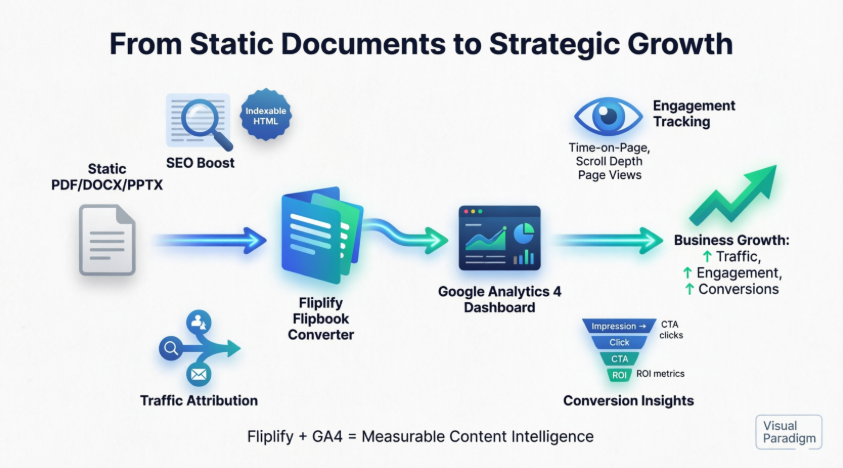
In today’s digital world, simply uploading a PDF isn’t enough. You need to understand how your audience interacts with your content: which pages they linger on, where they drop off, and what actions they take next. That’s where Visual Paradigm Fliplify comes in.
Fliplify transforms your static PDFs, Word documents, and PowerPoints into beautiful, page-turning digital flipbooks that work on any device. But the real magic happens when you connect it to **Google Analytics 4 **(GA4)—Google’s free, powerful analytics platform.
This beginner-friendly guide will help you:
-
✅ Understand what Fliplify is and why it stands out
-
✅ Learn how SEO-friendly flipbooks boost your content visibility
-
✅ Follow a simple, step-by-step tutorial to connect Fliplify to GA4
-
✅ Discover how to use analytics data to grow your business and website traffic
-
✅ See why GA4 tracking is the most cost-effective way to measure content success
No technical expertise required. Let’s get started.
Part 1: What Is Visual Paradigm Fliplify? (And Why Should You Care?)
🎯 The Problem with Traditional PDFs
Before we dive in, let’s be honest: standard PDFs have limitations.
-
❌ Hard to track who opened them or how long they read
-
❌ Poor mobile experience (pinch-and-zoom frustration)
-
❌ Invisible to search engines (Google can’t easily index PDF content)
-
❌ No built-in way to measure engagement or conversions
✨ Fliplify: Your Document, Reimagined
Fliplify is Visual Paradigm’s cloud-based flipbook converter that turns your static files into interactive, web-ready experiences. Think of it as giving your documents a “website upgrade” without needing a developer.
🔑 Core Benefits for Beginners
| Benefit | What It Means for You | Real-World Example |
|---|---|---|
| Easy Conversion | Upload PDF/DOCX/PPTX → Get a flipbook in minutes | A marketer uploads a product catalog and shares the link in an email campaign |
| Mobile-Responsive | Looks great on phones, tablets, and desktops | A student reads a textbook flipbook on their phone during commute |
| Built-in SEO | Search engines can find and rank your content | Your training manual appears in Google results when someone searches for your topic |
| GA4 Integration | Track reads, clicks, and conversions for free | You see which product page gets the most attention and optimize your sales strategy |
| Flexible Hosting | Publish on Fliplify’s portal or your own website | A business embeds a flipbook on their corporate site for brand consistency |
👥 Who Is Fliplify For?
-
Marketers: Track campaign performance and optimize content
-
Educators: Measure student engagement with digital textbooks
-
Business Professionals: Prove ROI on reports, proposals, and catalogs
-
Small Business Owners: Get enterprise-level analytics without the enterprise price tag
-
Content Creators: Understand what resonates with your audience
Part 2: Feature Review #1 – SEO Capabilities That Make Content Discoverable
🔍 Why SEO Matters for Your Flipbooks
If people can’t find your content, it doesn’t matter how beautiful it is. Fliplify solves this by making your flipbooks search-engine friendly.
How Fliplify’s SEO Works (Simple Explanation)
| Traditional PDF | Fliplify Flipbook |
|---|---|
| Appears as a single “file” to Google | Converted into semantic HTML that Google can read |
| Text is often unsearchable | Automatic text extraction creates a searchable layer |
| Hard to rank in search results | Content can appear in Google snippets and rankings |
🌐 Strategic Publishing Options
| Hosting Method | SEO Benefit | Best For |
|---|---|---|
| VP Online Community Portal | Instant public URL with domain authority boost | Quick publishing, community discovery, time-sensitive campaigns |
| Self-Hosting on Custom Domain | Full brand control, consolidated domain authority | Enterprise branding, long-term SEO strategy |
💡 Pro Tip for Beginners: Start with the VP Online portal for fast indexing. Once you’re comfortable, migrate to your custom domain for brand consistency.
Part 3: Feature Review #2 – Google Analytics 4 Integration Explained Simply
📊 What Can You Actually Track? (With Real Examples)
Fliplify + GA4 moves beyond basic “view counts” to give you behavioral intelligence. Here’s what you can measure:
| Metric Category | What You See | How to Use It |
|---|---|---|
| Reader Behavior | Page views per flip, time-on-page, scroll depth | Identify which sections keep readers engaged; shorten or redesign drop-off points |
| Traffic Sources | Organic search, social media, email campaigns, direct visits | Double down on channels that drive the most qualified readers |
| Audience Demographics | Location, device type (mobile/desktop), browser | Optimize design for your most common user (e.g., mobile-first if 70% read on phones) |
| Conversion Events | CTA clicks, form submissions, downloads | Measure ROI: Did the flipbook lead to sign-ups, sales, or inquiries? |
⚙️ Technical Setup Made Simple
Don’t worry about code. Fliplify uses GA4’s standard measurement protocol:
-
✅ No custom coding required
-
✅ Just paste your GA4 Measurement ID (
G-XXXXXXXXXX) -
✅ Data appears in GA4 within 24-48 hours (standard GA4 latency)
-
✅ Real-time reports available for immediate validation
Part 4: Step-by-Step Tutorial – Connect Fliplify to Google Analytics 4 (Beginner Edition)
🎓 Prerequisite: You need a free Google Analytics account. If you don’t have one, sign up here.
Part A: Set Up Your GA4 Property (5 Minutes)
Step 1: Access Admin Settings
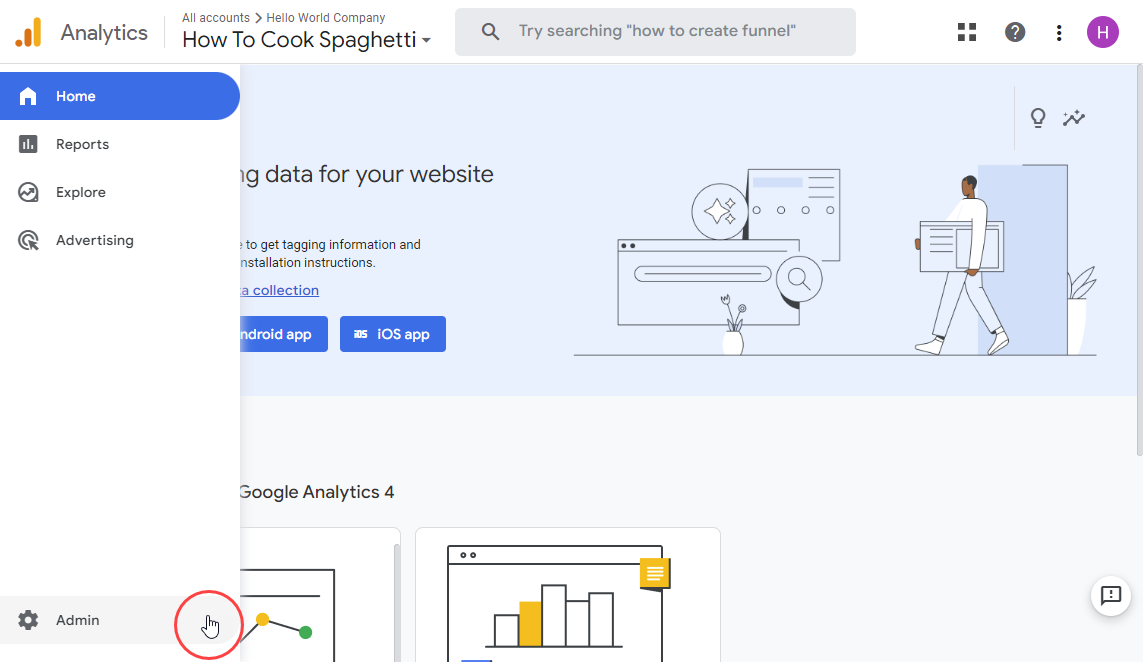
Log in to Google Analytics and click Admin in the bottom-left corner.
Step 2: Select Account & Property
Choose the GA4 property where you want flipbook data to appear. Tip: Create a new property named “Flipbooks” to keep data organized.
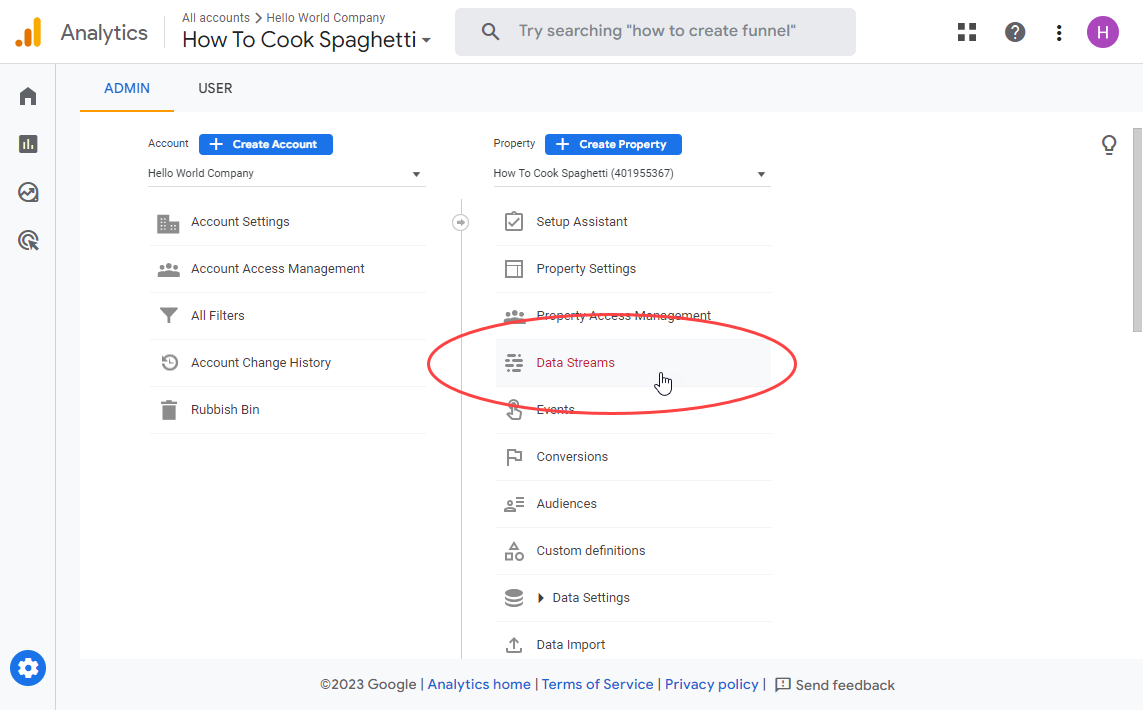
Step 3: Navigate to Data Streams
Under your GA4 property column, click Data Streams.
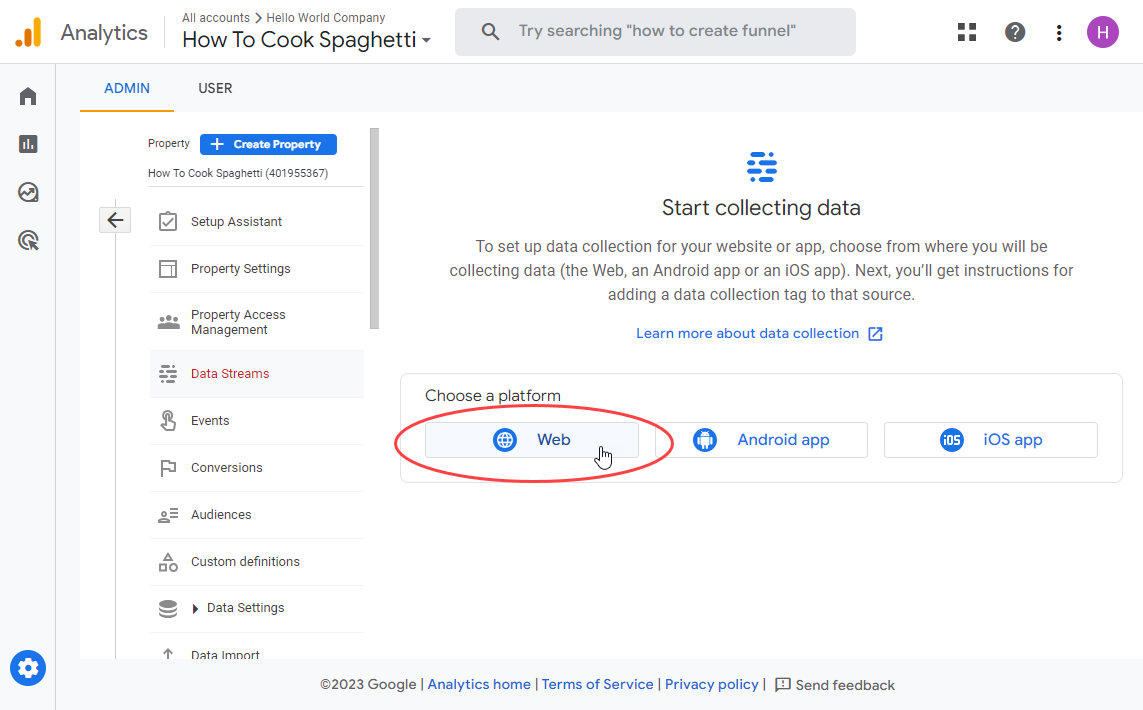
Step 4: Create a Web Stream
Click Add stream → Web.
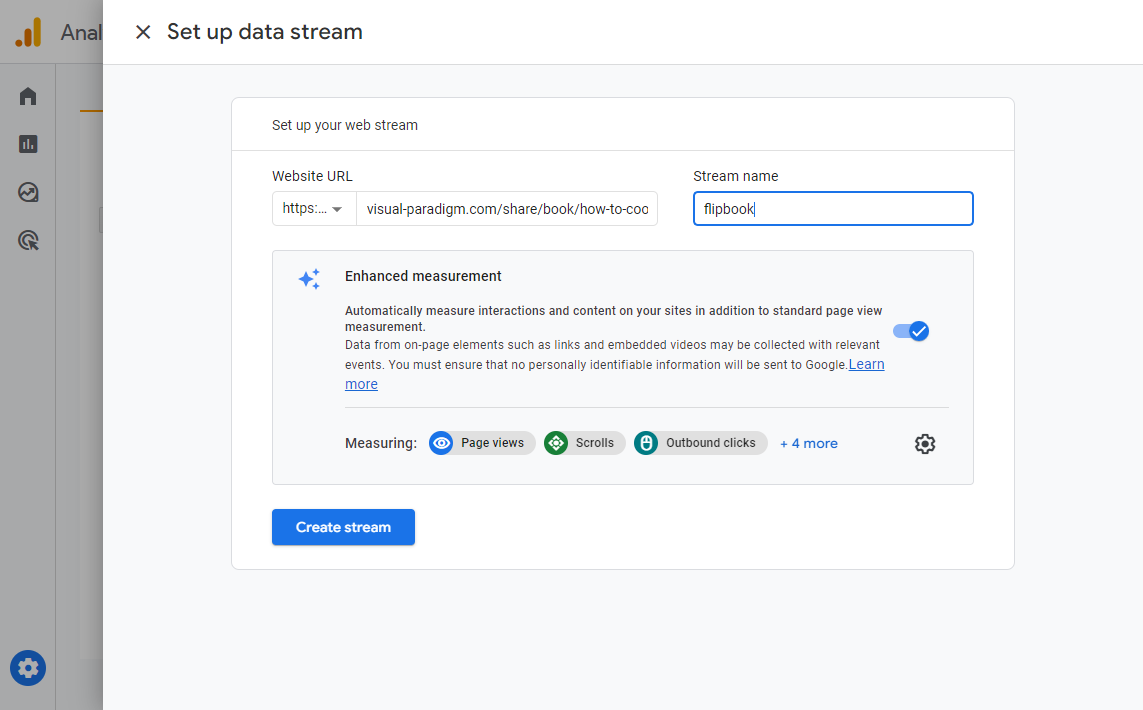
Step 5: Configure Stream Details
-
Website URL: Enter your flipbook’s public URL (e.g.,
https://online.visual-paradigm.com/your-flipbook) -
Stream name: Use something descriptive like “Fliplify – Product Catalog 2024”
-
Click Create stream
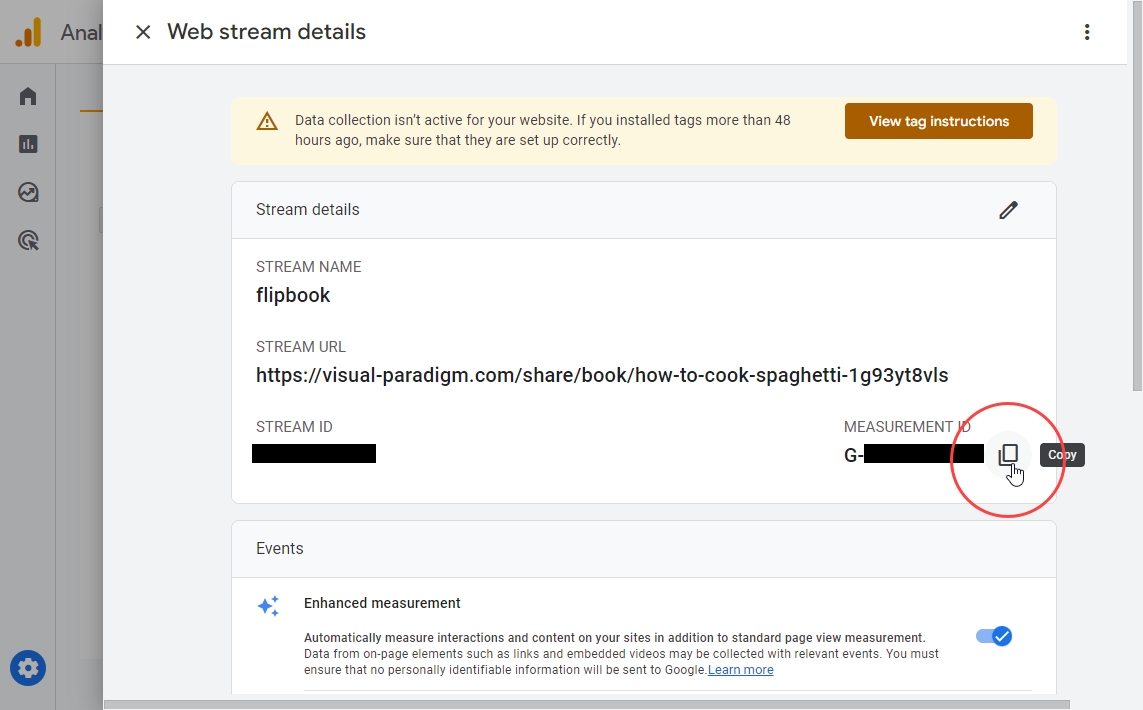
Step 6: Copy Your Measurement ID
Find the ID starting with G- (e.g., G-A1B2C3D4E5). Copy this—you’ll need it in Fliplify.
⏱️ Note: GA4 may take 24-48 hours to begin processing data from new sources. Don’t panic if you don’t see data immediately!
Part B: Activate Analytics in Fliplify (2 Minutes)
Step 1: Access Flipbooks Dashboard
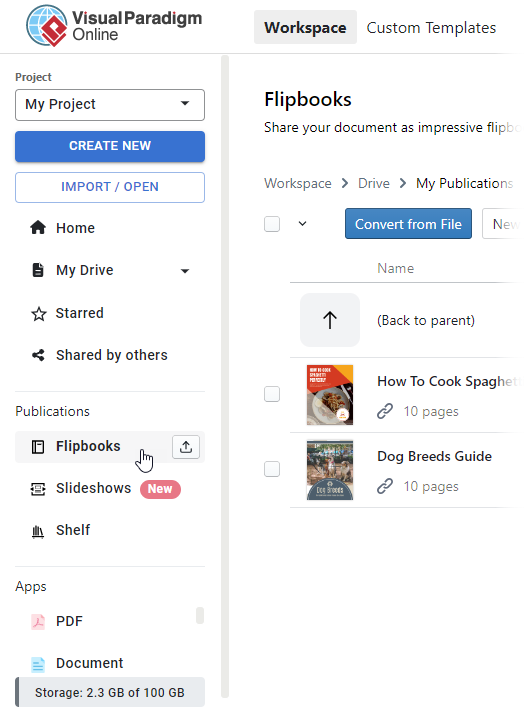
In your VP Online workspace, go to Flipbooks in the left-hand menu.
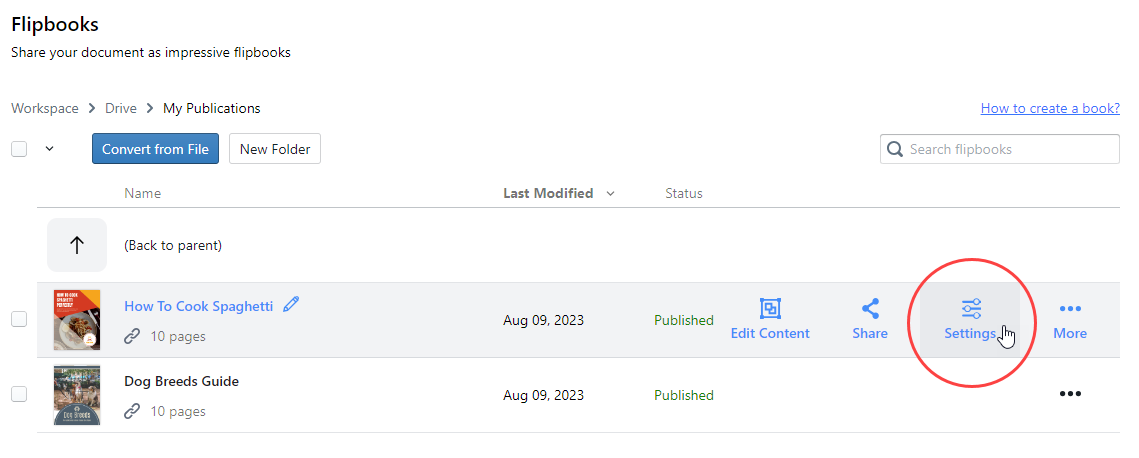
Step 2: Open Flipbook Settings
Find your flipbook and click the Settings (gear) icon.
Step 3: Paste Measurement ID
-
In Settings, select Analytics from the left menu
-
Paste your
G-Measurement ID into the field -
Click Finish
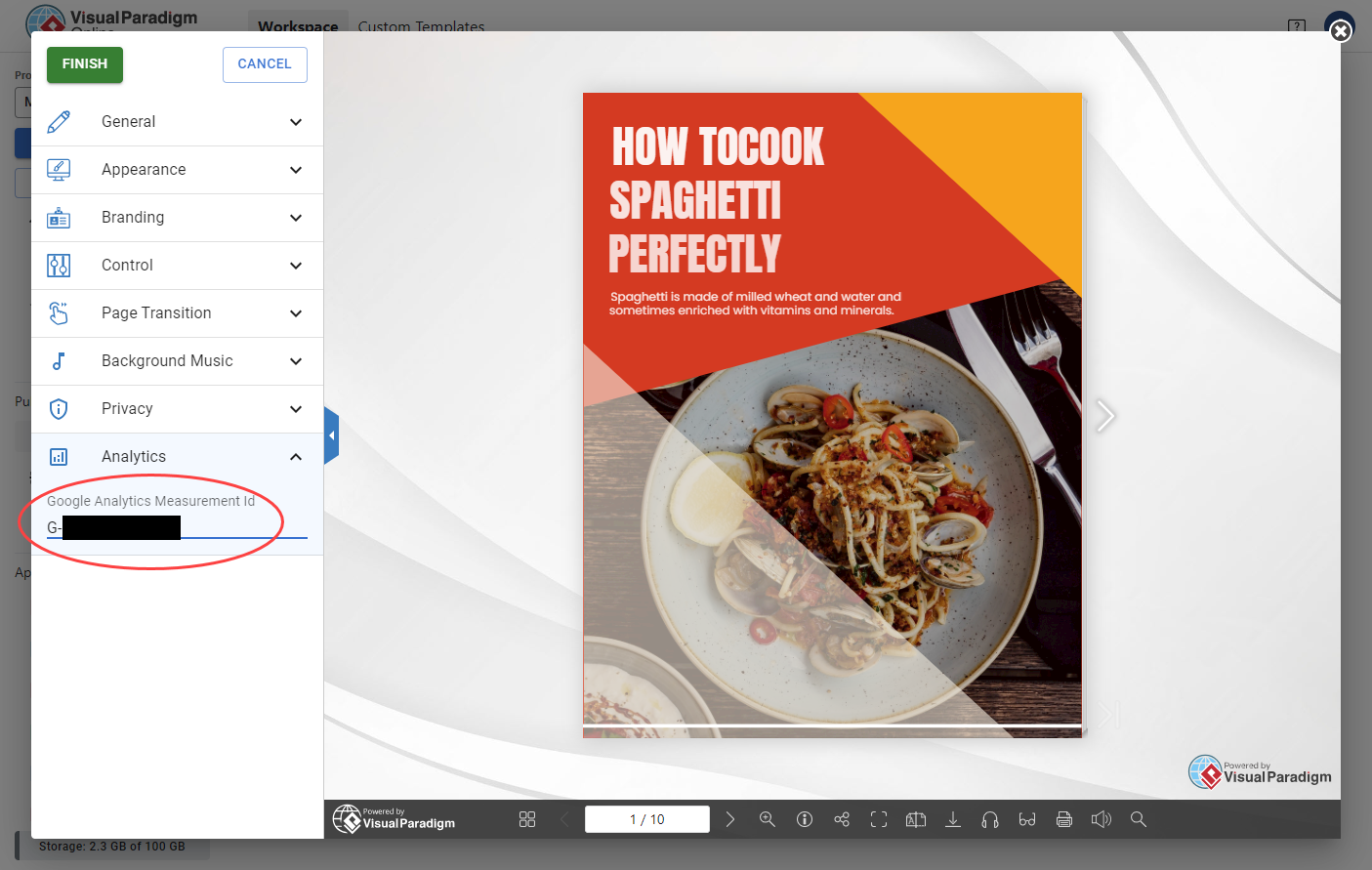
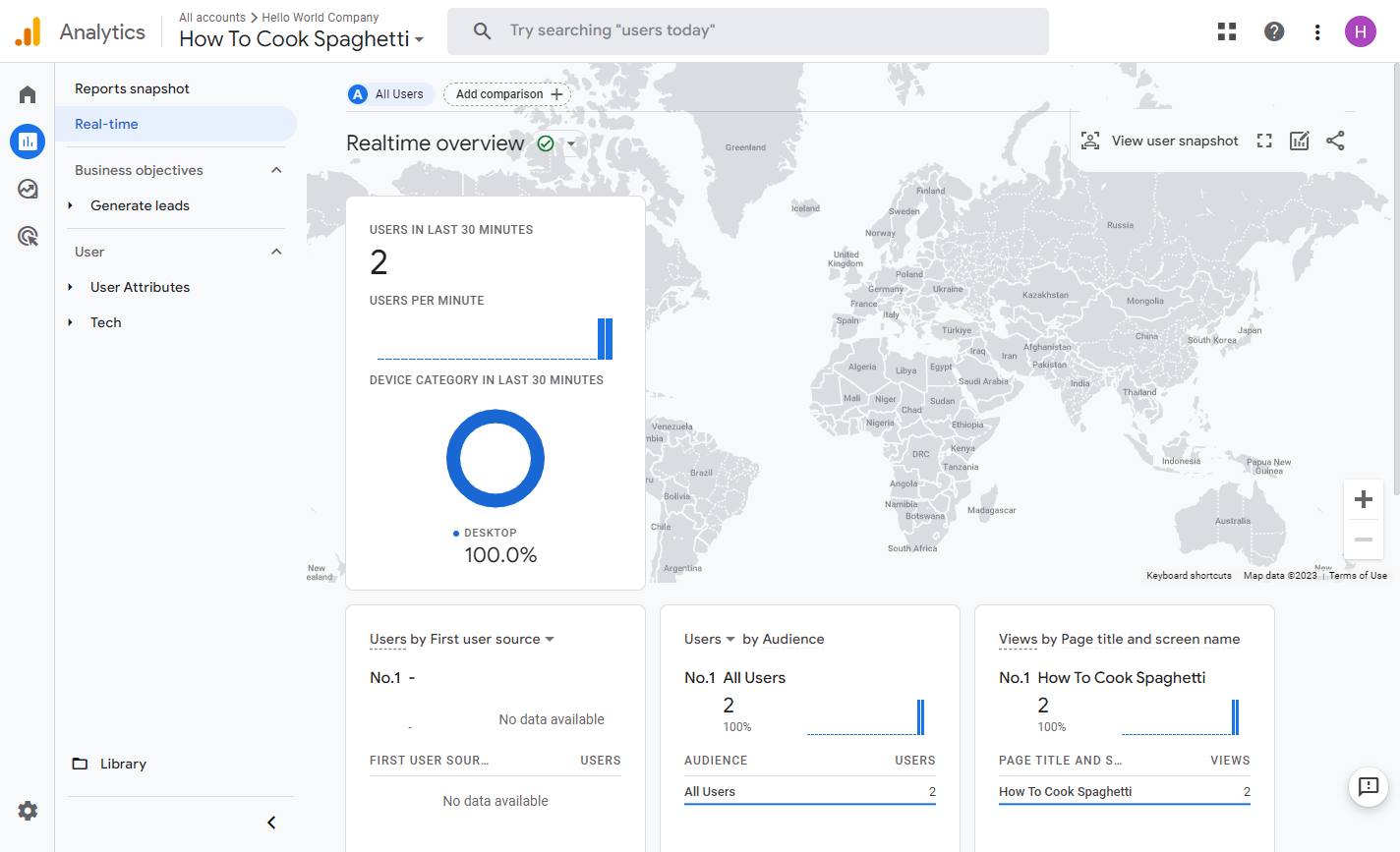
✅ You’re Live! Your flipbook now sends engagement data to Google Analytics. Real-time data may appear within minutes; full reports populate within 1-2 days.
Part 5: How to Boost Your Business & Website Traffic with Flipbooks
🚀 Strategy 1: Turn Content into Lead Magnets
-
Example: A real estate agent creates a flipbook “Home Buying Guide 2024”
-
Action: Gate the flipbook behind a simple email form
-
Result: Capture leads while providing value; track which sections drive the most form submissions
🚀 Strategy 2: Optimize for Search Visibility
-
Example: A training company uploads course materials as flipbooks
-
Action: Use descriptive titles, add keywords to flipbook metadata, publish on VP Online portal
-
Result: Course content appears in Google searches, driving organic traffic to your brand
🚀 Strategy 3: Personalize Based on Behavior
-
Example: An e-commerce brand tracks which product pages get the most time
-
Action: Use GA4 data to identify high-interest products; retarget engaged readers with special offers
-
Result: Higher conversion rates from warm, interested audiences
🚀 Strategy 4: Repurpose High-Performing Content
-
Example: A nonprofit sees high engagement on their impact report flipbook
-
Action: Extract top-performing sections into blog posts, social snippets, or email campaigns
-
Result: Maximize ROI on content creation efforts
Part 6: Why Google Analytics 4 Is the Most Effective & Economical Tracking Solution
💰 Cost Comparison: GA4 vs. Alternatives
| Solution | Cost | Learning Curve | Best For |
|---|---|---|---|
| Google Analytics 4 | Free | Moderate (but this guide simplifies it!) | Most businesses, beginners, budget-conscious teams |
| Premium Analytics Tools | $50-$500+/month | Steep | Enterprise teams with dedicated analysts |
| Custom-Built Tracking | $1,000+ development | Very steep | Unique, complex use cases only |
| No Tracking | $0 | None | ❌ Not recommended—you’re flying blind |
🎯 Why GA4 + Fliplify Is a Power Combo for Beginners
-
Free Forever: GA4 has no cost for standard usage (which covers most flipbook tracking needs)
-
No Code Required: Fliplify handles the technical integration; you just paste an ID
-
Actionable Insights: Move from “How many views?” to “Which pages drive conversions?”
-
Scalable: Start simple, then add custom events as you grow
-
Future-Proof: GA4 is Google’s current analytics standard, with ongoing updates and support
📈 Real Beginner Win: From Guesswork to Data-Driven Decisions
Before GA4:
“I think our product catalog is popular… maybe?”
After GA4 + Fliplify:
“Page 7 (pricing table) has 3x longer engagement than average. 42% of mobile users who view page 7 click our ‘Contact Sales’ CTA. Let’s move pricing higher in the flipbook and A/B test the CTA button color.”
That’s the power of measurable content.
Part 7: Pro Tips for Maximizing Your Analytics Value (Beginner-Friendly)
🔹 Validate Early: After setup, open GA4’s Realtime report (Reports → Realtime) and view your flipbook. You should see your own visit appear within seconds.
🔹 Start Simple: Don’t try to track everything at once. Begin with page views and time-on-page. Add custom events (like CTA clicks) once you’re comfortable.
🔹 Use UTM Parameters: When sharing your flipbook link, add simple tags to track sources:
https://online.visual-paradigm.com/your-flipbook?utm_source=email&utm_campaign=spring2024
Then in GA4, filter by “Session source/medium” to see which channels perform best.
🔹 Create a “Success” Audience: In GA4, build an audience like “Readers who viewed 5+ pages AND spent >2 minutes.” Use this segment for targeted follow-up emails or ads.
🔹 Review Monthly: Set a calendar reminder to check flipbook performance monthly. Look for trends: Are certain topics getting more engagement? Is mobile traffic growing? Adjust your content strategy accordingly.
Conclusion: Your Content, Now a Strategic Asset
Visual Paradigm Fliplify + Google Analytics 4 transforms how you create, share, and measure content. No longer are your PDFs static files disappearing into the digital void. Instead, every flipbook becomes a measurable touchpoint in your customer journey.
What you’ve learned today:
-
✅ How Fliplify turns documents into SEO-friendly, mobile-ready flipbooks
-
✅ Why GA4 integration gives you free, powerful insights into reader behavior
-
✅ A simple, step-by-step process to connect the two (no coding!)
-
✅ Practical strategies to boost traffic, engagement, and conversions
-
✅ Why this approach is both effective and economical for beginners
Your next step: Pick one document you’ve been meaning to share—a report, catalog, guide, or presentation—and turn it into a flipbook today. Follow the setup steps above, and within 48 hours, you’ll start seeing data that helps you make smarter content decisions.
💬 Ready to go further? Once you’re comfortable with basics, explore A/B testing flipbook designs, adding interactive elements, or layering in heatmapping tools to complement your GA4 insights.
Start tracking. Start learning. Start growing.
References
-
Why Visual Paradigm Online’s Flipbook Maker Stands Out: Overview of Fliplify’s competitive advantages including ease of use, conversion quality, and integrated marketing features.
-
Reference List for Learning Fliplify: Curated resource guide for mastering Fliplify’s tools, tutorials, and best practices.
-
The Complete Tutorial to Visual Paradigm Flipbook Maker: Step-by-step walkthrough of Fliplify’s core functionality and use cases from Cybermedian.
-
Transforming Digital Content: The Comprehensive Guide to Fliplify: In-depth exploration of Fliplify’s SEO tools and analytics integration capabilities.
-
Discover the Power of Searchable Flipbooks: Blog post detailing how Fliplify’s text extraction and indexing improve content discoverability.
-
Elevate Your Digital Presence with Dynamic Flipbooks: Visual Paradigm’s official guide to leveraging flipbooks for brand engagement and lead generation.
-
The Ultimate Guide to VP Online’s Bookshelf: Tutorial on organizing, publishing, and managing flipbook collections via the VP Online portal.
-
Comprehensive Guide to Creating Interactive Flipbooks: End-to-end workflow for designing, customizing, and distributing Fliplify publications.
-
Improve Customer Experience with Digital Flipbooks: Strategies for using flipbook analytics to enhance user journeys and conversion funnels.
-
Flipbook Maker Category Archive: Collection of Visual Paradigm blog posts covering flipbook features, updates, and use cases.
-
How Google Analytics Helps You Track Website Growth: Marketing-focused explanation of GA4 metrics relevant to content performance tracking.
-
Track Flipbook Performance Using Google Analytics: Official Visual Paradigm tutorial on configuring and interpreting GA4 reports for flipbooks.
-
Google Analytics Help: Measurement Code Data Collection: Google’s official documentation on how GA4 measurement IDs collect and process user interaction data.
-
VP Online Know-How: Google Analytics Integration: Visual Paradigm’s technical knowledge base article with screenshots and troubleshooting tips.
-
Tracking Flipbook Views with Google Analytics Integration: Source article detailing the step-by-step GA4 setup process for Fliplify users.