Key Concepts
Before diving into the diagram generation process, it is essential to understand the core components that make Visual Paradigm’s new AI features a powerful asset for Enterprise Architecture (EA).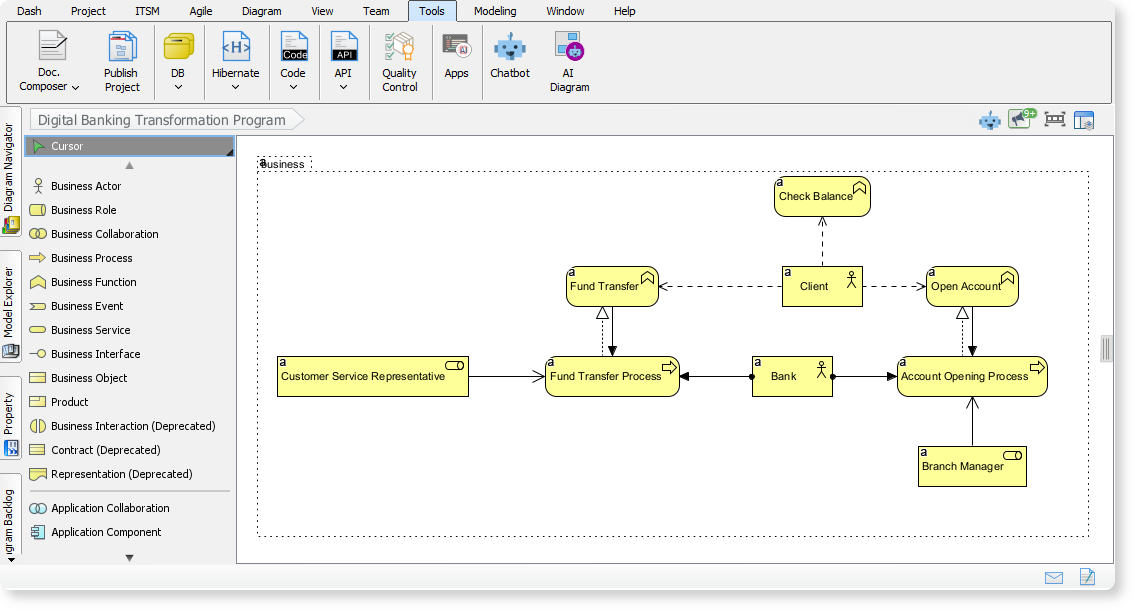
- ArchiMate: An open and independent enterprise architecture modeling language to support the description, analysis, and visualization of architecture within and across business domains in an unambiguous way.
- Viewpoints: In ArchiMate, a viewpoint is a specification of the conventions for constructing and using a view. It serves as a lens through which specific aspects of an architecture are presented to different stakeholders (e.g., a Physical view for operations or a Capability Map for executives).
- AI Diagram Generator: A feature within Visual Paradigm Desktop that utilizes generative AI to translate natural language prompts into structured, fully compliant diagrams, eliminating the need to start modeling from a blank canvas.
Guidelines: Step-by-Step Generation
Follow these steps to instantly create ArchiMate diagrams and official viewpoints using the AI tools in Visual Paradigm Desktop.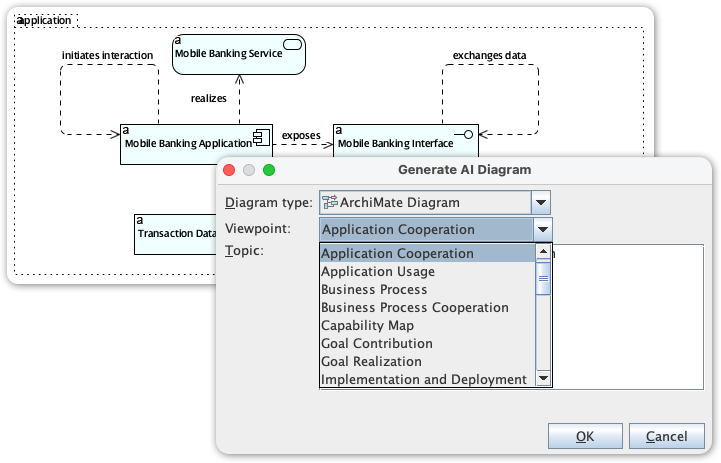
Step 1: Access the AI Tool
Launch Visual Paradigm Desktop. Navigate to the main menu bar, click on Tools, and select AI Diagram to open the generation interface.
Step 2: Select the ArchiMate Viewpoint
Instead of drawing elements manually, select the specific architectural view you require from the dropdown menu. The tool supports all official ArchiMate viewpoints, including:
- Strategy & Motivation: Capability Map, Goal Realization, Stakeholder.
- Business Layer: Business Process, Business Process Cooperation, Organization.
- Application & Technology: Application Usage, Technology, Implementation and Deployment.
Step 3: Define the Scope
In the text input field, enter a topic or a high-level requirement. Be specific about the scenario to get the best results. Examples include:
- “Telecom 5G Network Rollout Architecture”
- “Digital Banking Transformation Program”
- “Healthcare Information Exchange Platform”
Step 4: Customize Audience and Tone
To ensure the textual explanation and model complexity match your needs, specify the target audience (e.g., engineers, product managers) and the desired tone (e.g., formal, technical). This helps the AI tailor the output for specific stakeholder presentations.
Step 5: Generate and Refine
Click OK to generate the diagram. The AI will draft a comprehensive ArchiMate model including application services, business processes, and infrastructure elements. Once generated, the diagram is fully editable. You should review the draft to fact-check connections and refine the model to align strictly with your organization’s internal standards.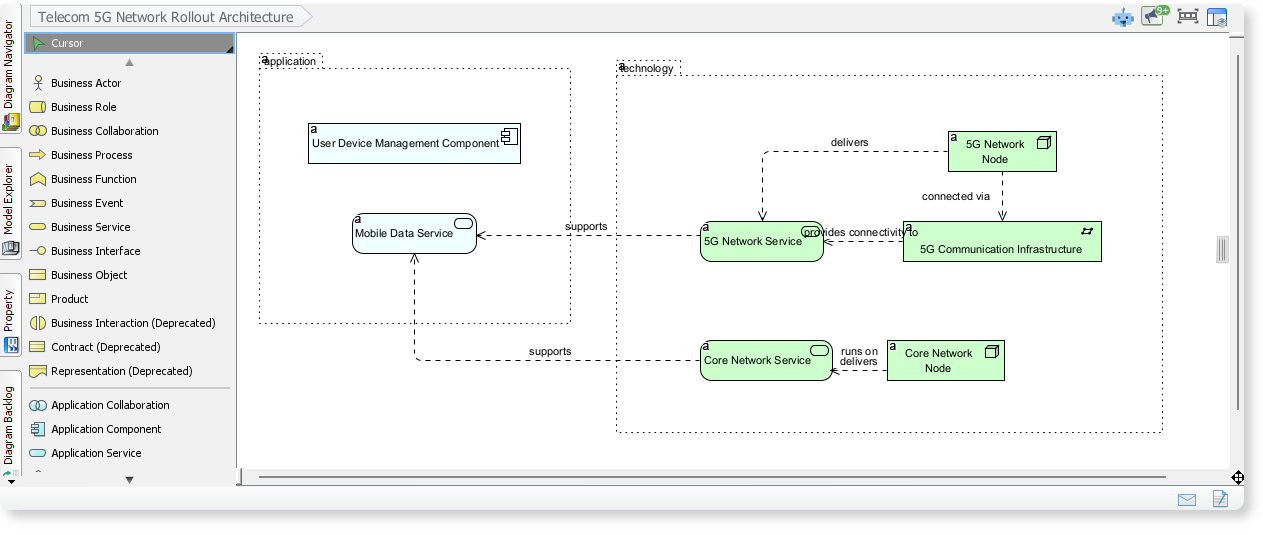
Tips and Tricks
- Overcome the “Blank Canvas” Syndrome: Use the AI generator specifically for project kickoffs. Even if the initial output isn’t perfect, it provides a structured foundation that is faster to edit than creating a complex model from scratch.
- Tailor Views for Stakeholders: Generate multiple versions of the same project using different viewpoints. Use a Capability Map when presenting to C-level executives and a Technology Usage view for IT implementation teams.
- Iterative Refinement: If the diagram is missing specific layers, try adjusting your prompt to include keywords like “security layers,” “user workflows,” or “cloud infrastructure” to guide the AI toward a more detailed output.
- Combine with Manual Modeling: Use the AI to generate the bulk of standard components (like generic server stacks or standard business processes), then manually add your organization’s unique proprietary systems to the diagram.