Documenting modern software architecture is a balancing act. You need high-level views for stakeholders and detailed component maps for engineers. The C4 Model (Context, Containers, Components, Code) has become the industry standard for this hierarchical approach, but creating and maintaining these diagrams manually is often complex, time-consuming, and error-prone.
Visual Paradigm Desktop has introduced a game-changing AI Diagram Generator that solves the “blank canvas” problem. By leveraging artificial intelligence, you can now generate the complete C4 Model suite—including System Context, Containers, Components, Landscape, Dynamic, and Deployment diagrams—simply by providing a topic.
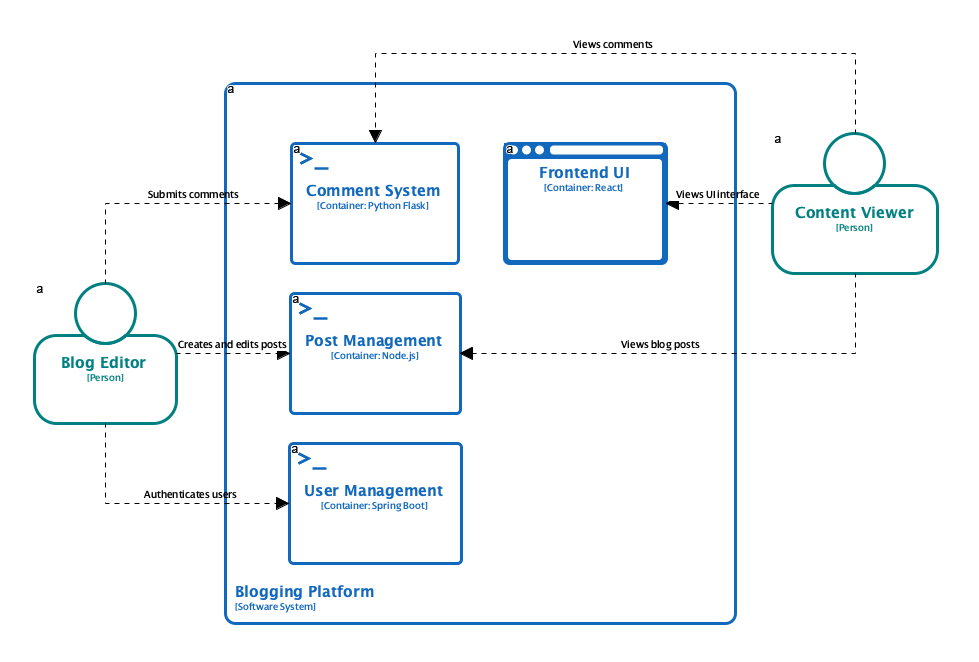
This tutorial will guide you through the process of using this powerful tool to automate your architectural documentation.
Understanding the AI C4 Capabilities
Before diving into the steps, it is important to understand what this tool covers. The AI Diagram Generator allows you to create six distinct architectural views:
- System Context: High-level view for non-technical stakeholders.
- Containers: High-level technical view showing applications and data stores.
- Components: Detailed view of the internals of a container.
- Landscape: An enterprise-wide view of systems.
- Dynamic: How elements in the architecture interact at runtime.
- Deployment: Mapping software containers to infrastructure nodes.
Step-by-Step Tutorial: Generating Your C4 Model
Follow these steps to generate comprehensive architectural diagrams in seconds using Visual Paradigm Desktop.
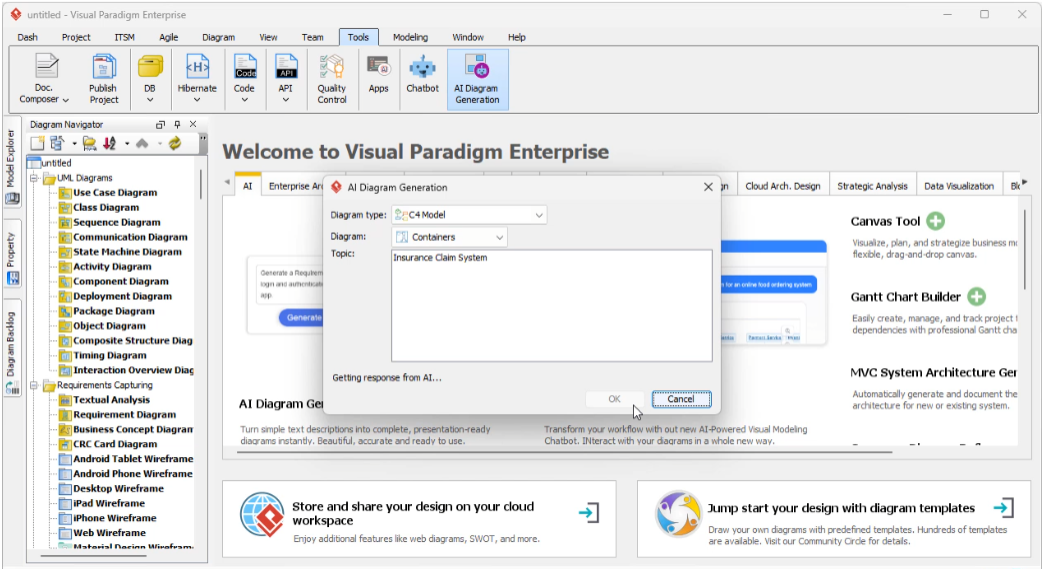
Step 1: Access the AI Tool
Open Visual Paradigm Desktop. In the main interface, navigate to the toolbar at the top of the screen.
- Click on Tools.
- Select AI Diagram Generation from the dropdown menu.
Step 2: Select the Diagram Category
The AI generator supports various diagramming standards. To focus on architectural modeling:
- In the Diagram Type Menu, locate and select C4 Model.
Step 3: Choose Your C4 View
Decide which level of abstraction you need. You are not limited to just one; the unified workflow allows you to generate them individually as needed.
- Select the specific C4 diagram type you wish to create (e.g., C4 System Context Diagram or C4 Containers Diagram).
Step 4: Define Your System
This is the most critical step. You need to provide the AI with a prompt or topic.
- Enter a Topic or description of the system you are architecting (e.g., “Online Banking System with Fraud Detection”).
- (Optional) Define the Audience to guide the complexity (e.g., General Readers vs. Engineers).
Step 5: Generate and Refine
Click the generation button. The AI will process your request and instantly map your description to the selected C4 level standards.
Note: The result is not a static image but an editable diagram. You can now spend your time refining and validating the model rather than drawing boxes and arrows from scratch.
Guidelines for Effective AI Modeling
To get the best results from the AI Diagram Generator, follow these best practices:
- Be Specific with Topics: The more context you provide in your topic description, the more accurate the initial draft will be. Instead of “E-commerce,” try “Microservices-based E-commerce platform with Stripe payment integration and inventory management.”
- Respect the Hierarchy: When generating a System Context diagram, focus your description on external users and systems. When generating a Component diagram, focus your description on internal logic and services.
- Validate Against Standards: The AI is trained on C4 standards, but always review the output to ensure it matches your specific organizational domain language.
Examples of AI-Generated Outputs
The AI Diagram Generator fundamentally changes the workflow by providing near-instant starting points. Here are scenarios of what you can expect to generate:
Scenario 1: The Big Picture
Input: “Corporate Intranet Portal” selected as a System Landscape Diagram.
Output: The AI generates a diagram showing the Intranet System in the center, surrounded by employees (users), the Active Directory system, HR systems, and external cloud providers, visualizing the enterprise-wide context.
Scenario 2: Technical Deep Dive
Input: “Order Processing Service” selected as a C4 Components Diagram.
Output: The AI drills down into the specific container, generating components such as the “Order Controller,” “Inventory Service Client,” “Payment Processor,” and “Database Repository,” complete with directional relationships.
Tips and Tricks
Unlock the full potential of the C4 AI generator with these optimization tips:
- Rapid Switching: The unified workflow allows you to quickly switch between the six C4 views. If you just generated a Context diagram, immediately switch the type to Container with the same topic to keep your documentation consistent.
- Target Your Audience: Use the audience selection feature strategically. Select “Executives” for Context diagrams to keep them simple, and “Engineers” for Component/Deployment diagrams to ensure technical precision.
- Deployment Mapping: Use the C4 Deployment Diagram generator to instantly visualize how your software containers map to infrastructure, saving hours of manual infrastructure mapping.
By automating the initial creation of these diagrams, Visual Paradigm allows software teams to focus on architectural decisions rather than the mechanics of drawing, ensuring documentation is always comprehensive and up-to-date.
- C4 Diagram Tool by Visual Paradigm – Visualize Software Architecture with Ease: Explore Visual Paradigm’s powerful C4 diagram tool designed to help software architects create clear, scalable, and maintainable system diagrams using the C4 modeling approach.
- C4 Diagram Solution by Visual Paradigm – Enterprise-Grade Architecture Visualization: Visual Paradigm’s C4 diagram solution enables teams to model and communicate complex software systems using standardized, hierarchical diagrams for better collaboration and clarity.
- Ultimate Guide to C4 Model Visualization Using Visual Paradigm’s AI Tools: A comprehensive guide on leveraging Visual Paradigm’s AI-powered tools to automate and enhance C4 model visualization for faster, smarter software architecture design.
- Leveraging Visual Paradigm’s AI C4 Studio for Streamlined Architecture Documentation: A detailed guide on using Visual Paradigm’s AI-enhanced C4 Studio to create clean, scalable, and maintainable software architecture documentation.
- C4 Model & PlantUML Studio Integration in Visual Paradigm: Explore how Visual Paradigm integrates C4 modeling and PlantUML to enable clear, scalable software architecture documentation with code-like precision.