
Hey fellow diagram enthusiasts! 👋 As someone who juggles technical UML models, marketing graphics, and project documentation daily, I’m thrilled to share my firsthand experience with Visual Paradigm’s newest game-changer: direct integration between Visual Paradigm Online and OpenDocs via the Pipeline.
If you’ve ever wasted time downloading diagrams, uploading them to docs, and then repeating the cycle every time a stakeholder requests a tiny tweak—this one’s for you. Let me walk you through how this cloud-native workflow transformed my documentation process.
🌟 Why This Integration Matters to Me
Before this update, my workflow looked like this:
-
Design a diagram in Visual Paradigm Online ☁️
-
Export as PNG/SVG 💾
-
Upload to my documentation tool 📤
-
Repeat steps 1-3 every time the diagram changed 😩
Now? It’s beautifully simple:
-
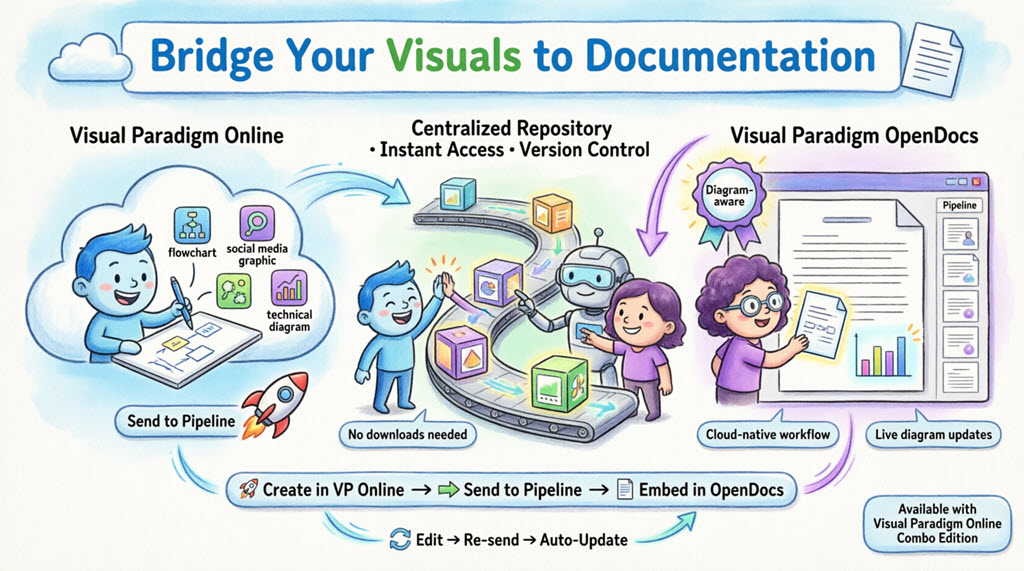
Create → Send to Pipeline → Embed in OpenDocs → Update anytime, anywhere.
No more file management headaches. No more version confusion. Just pure, cloud-powered productivity.
💡 Note: This feature requires a Visual Paradigm Online Combo Edition subscription. If you’re on this plan, you’re ready to go!
📚 Quick Primer: What Is Visual Paradigm OpenDocs?
If you haven’t tried Visual Paradigm OpenDocs yet, think of it as a “diagram-aware” knowledge base. Unlike traditional word processors, OpenDocs embeds a full diagramming engine directly into the editor. This means:
-
Insert visuals without leaving your document
-
View diagrams interactively
-
Re-edit source diagrams with one click
-
Keep documentation and visuals perfectly synchronized
Connecting Visual Paradigm Online to OpenDocs turns your cloud diagrams into living components of your documentation—not static screenshots.
🚀 Understanding the Pipeline: Your Asset Transit Hub
The Pipeline is the magic glue in this workflow. Think of it as your personal cloud storage for diagrams and graphics (called “artifacts”). When you “Send to Pipeline” from Visual Paradigm Online:
-
Your artifact is securely stored in a centralized repository
-
OpenDocs can instantly access it for embedding
-
Updates to the source diagram create new revisions in the Pipeline
-
Teams can share and reuse assets across projects
It’s like having a smart, version-controlled asset library built right into your workflow.
🎯 Step-by-Step: Sending Visuals from VP Online to OpenDocs
Here’s exactly how I send my diagrams—takes less than a minute:
1️⃣ Open Your Diagram in Visual Paradigm Online
Start with any diagram or graphic you’ve created in your browser-based editor.
2️⃣ Export to the Pipeline
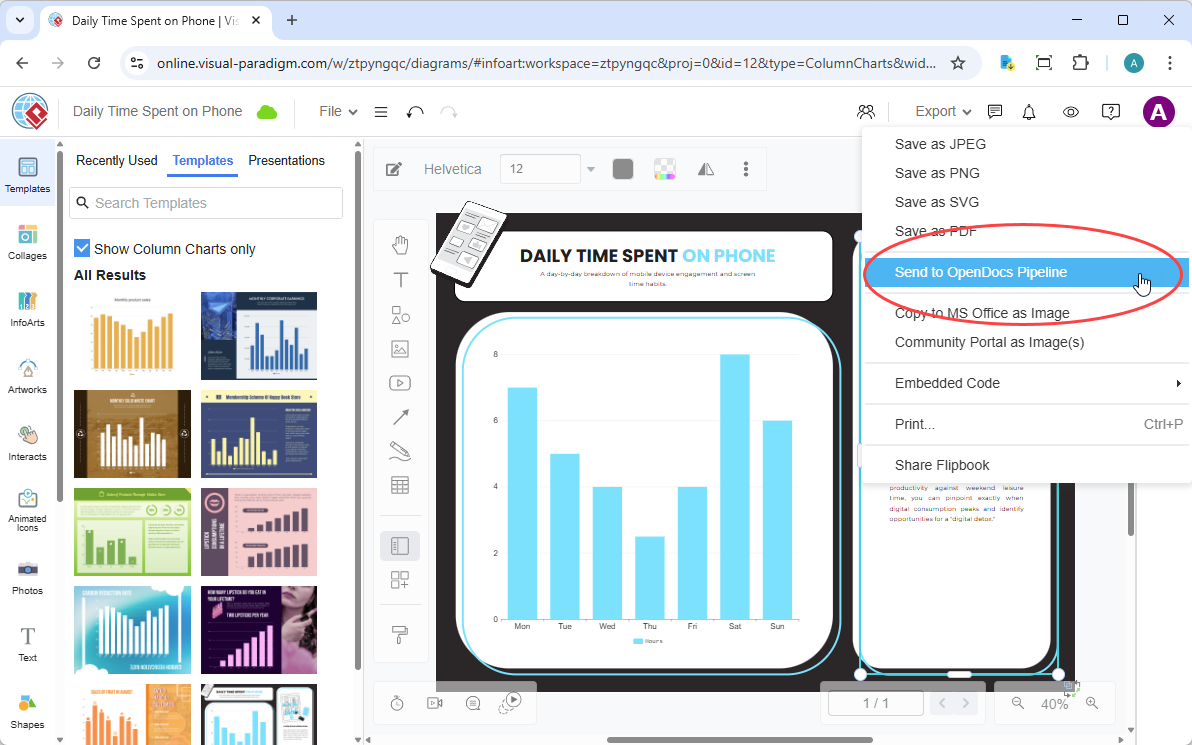
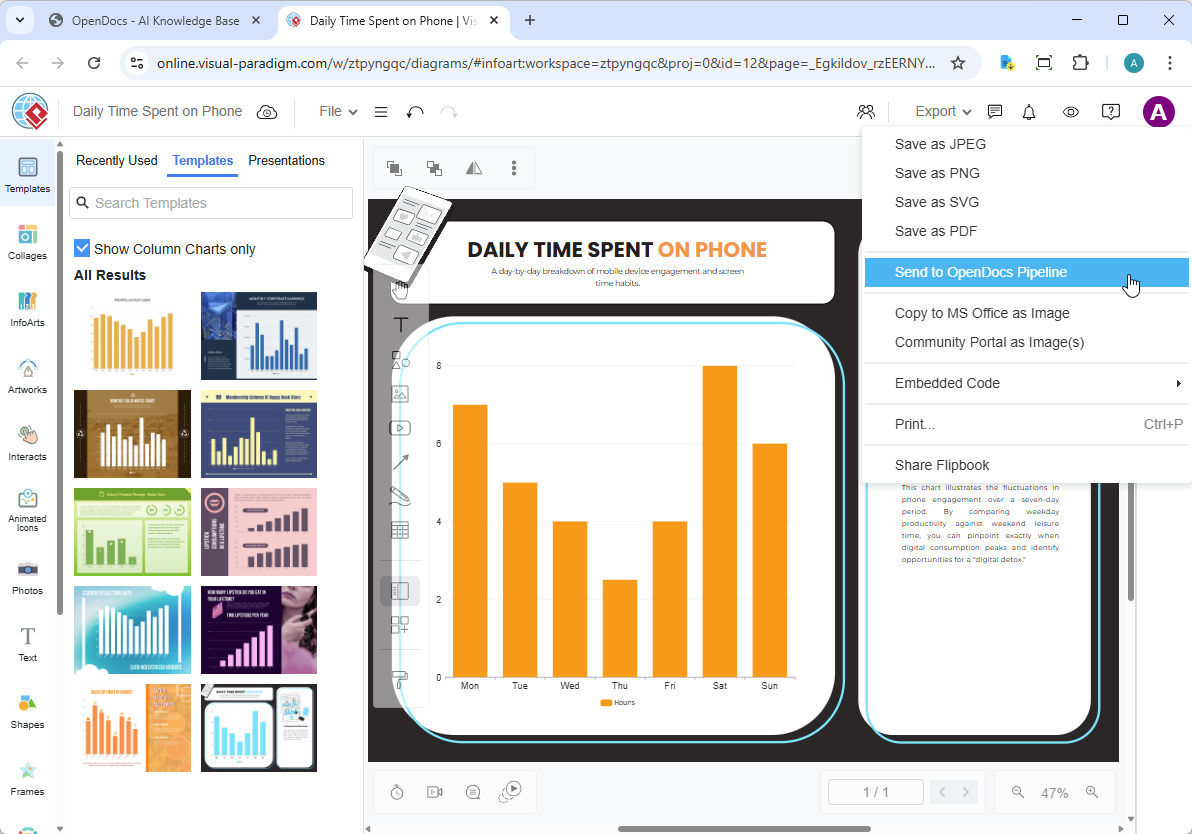
In the top menu, select Export > Send to OpenDocs Pipeline.
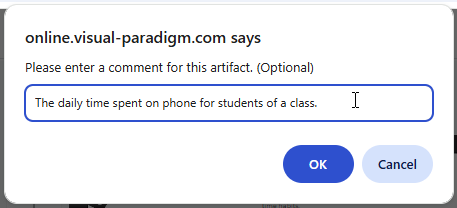
3️⃣ (Optional) Add a Descriptive Comment
This step is a lifesaver for organization! Add keywords like “Q2 Marketing Funnel” or “User Auth Flow v3” to make future searches effortless.
4️⃣ Confirm & Go
Click confirm. Your visual is now securely stored in the Pipeline and ready for OpenDocs. ✅
📄 Embedding Your Artifacts in OpenDocs
Now for the fun part—getting that diagram into your documentation:
1️⃣ Open & Edit Your Document
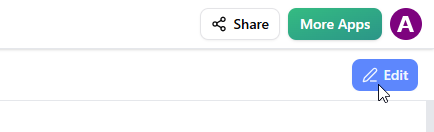
Navigate to any page in OpenDocs and click the Edit button.
2️⃣ Position Your Cursor
Click exactly where you want the diagram to appear.
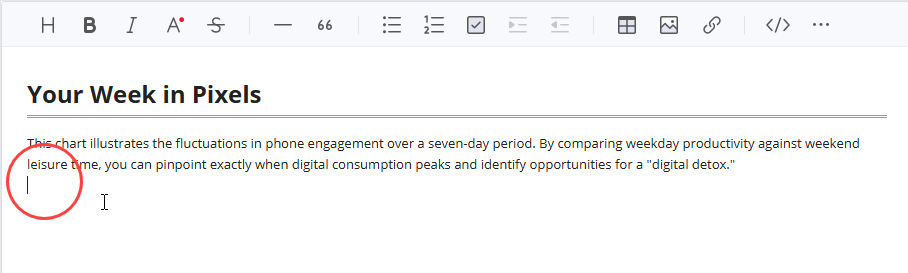
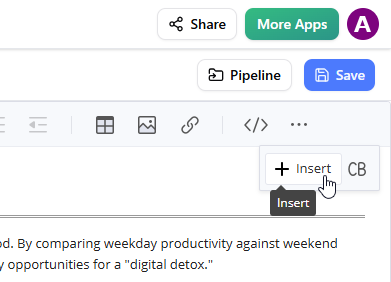
3️⃣ Open the Insert Menu
On the toolbar, click Insert.
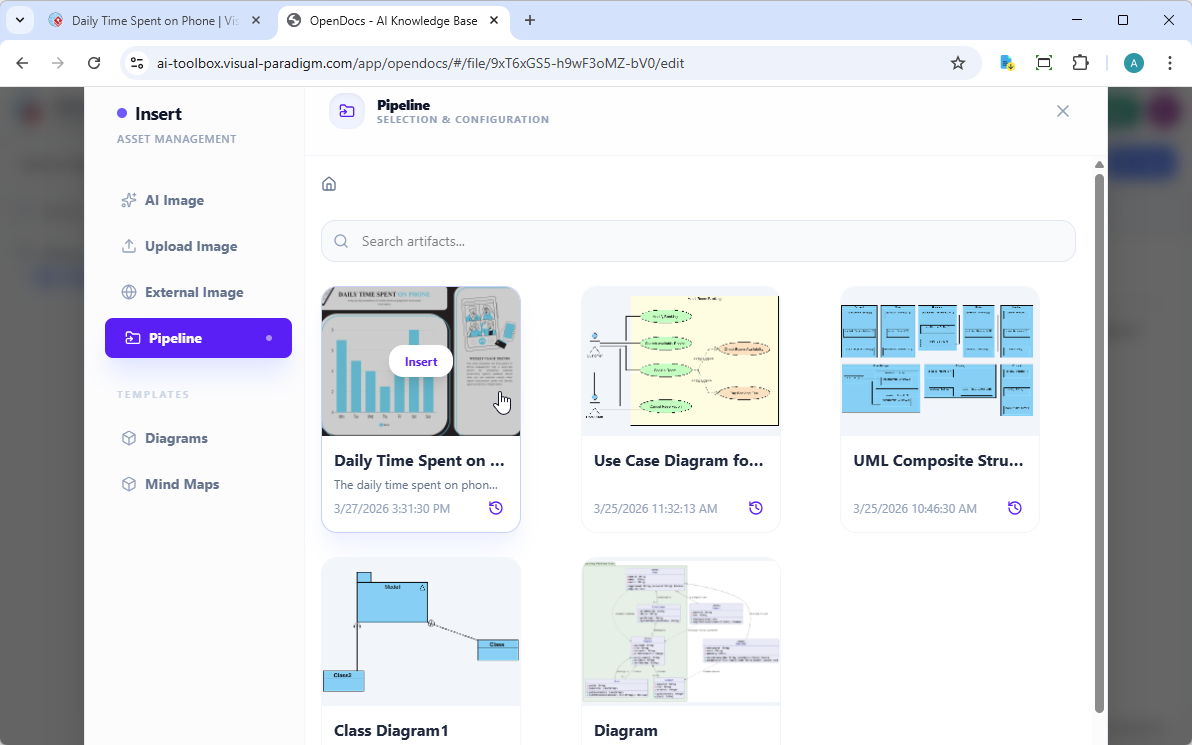
4️⃣ Select from Pipeline
In the Insert window, choose Pipeline from the left sidebar. Your sent diagrams appear here, ready to use.
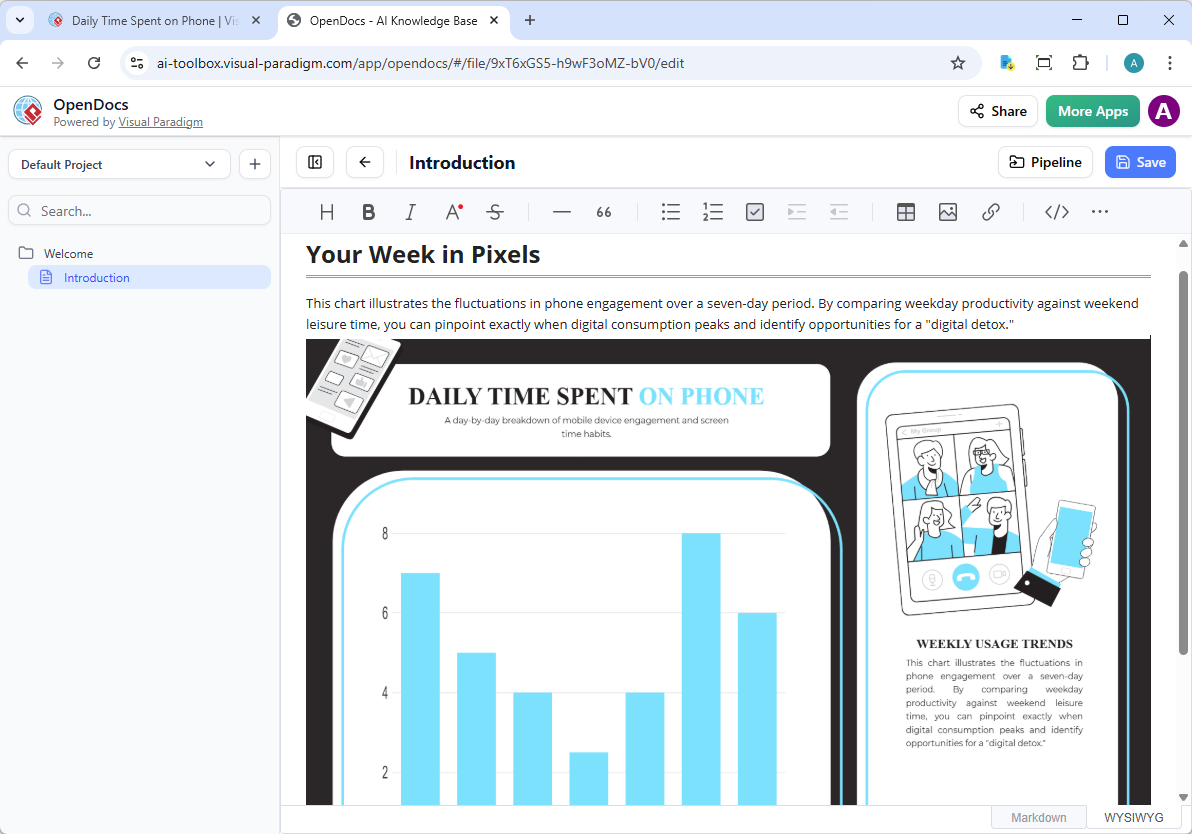
5️⃣ Insert & Enjoy
Click your diagram. It instantly appears at your cursor position—fully interactive and ready for readers.
🔄 Keeping Documentation in Sync: Updating Artifacts
Here’s where the magic truly shines. When your diagram evolves, your documentation can too—without manual re-uploads.
Step 1: Open the Source Diagram from OpenDocs
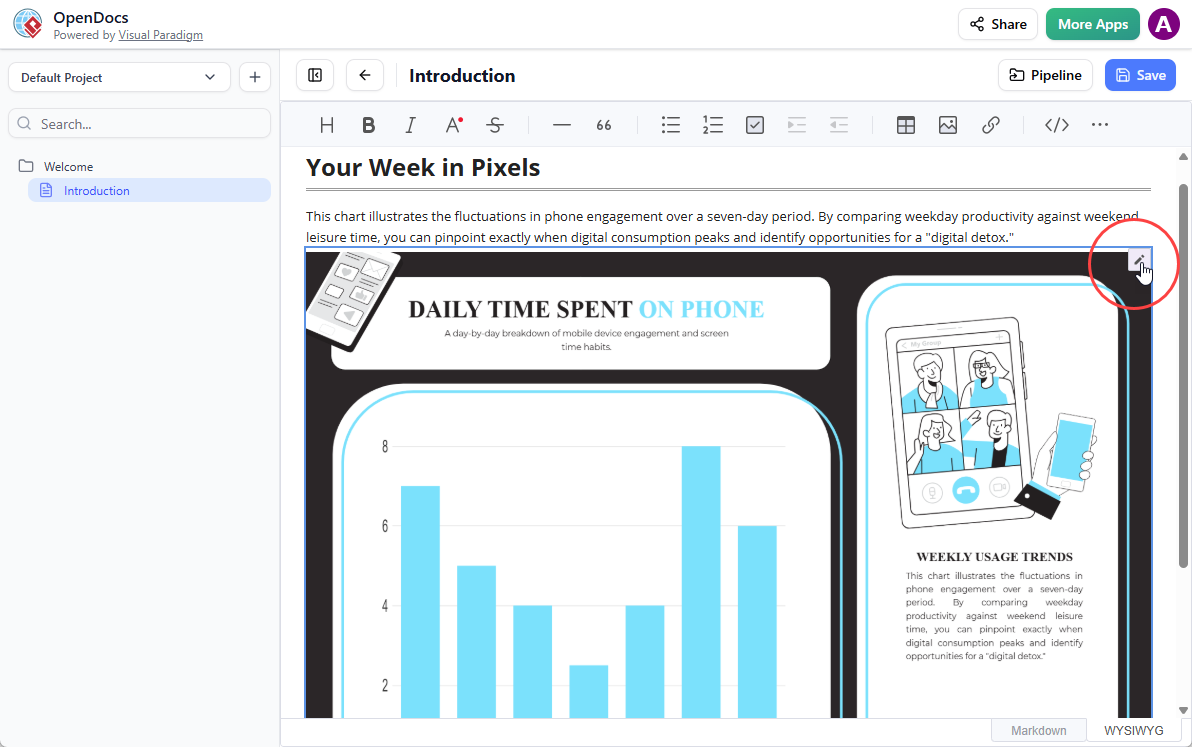
In OpenDocs, hover over your embedded diagram and click the Edit icon (top-right of the image) to open the Edit Diagram window.
Step 2: Edit & Re-send to Pipeline
Make your changes in Visual Paradigm Online. When done, go to Export > Send to OpenDocs Pipeline again.
Step 3: Swap to the Latest Revision in OpenDocs
Back in OpenDocs editor:
-
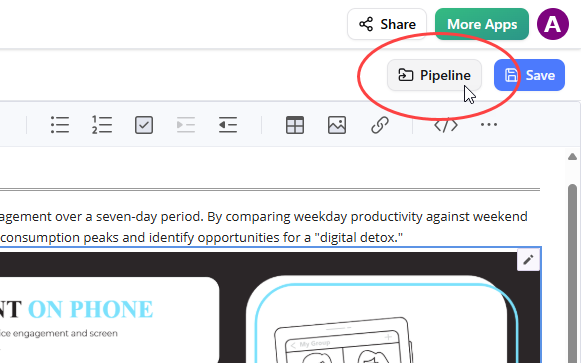
Click Pipeline at the top-right to open the Pipeline pane.
-
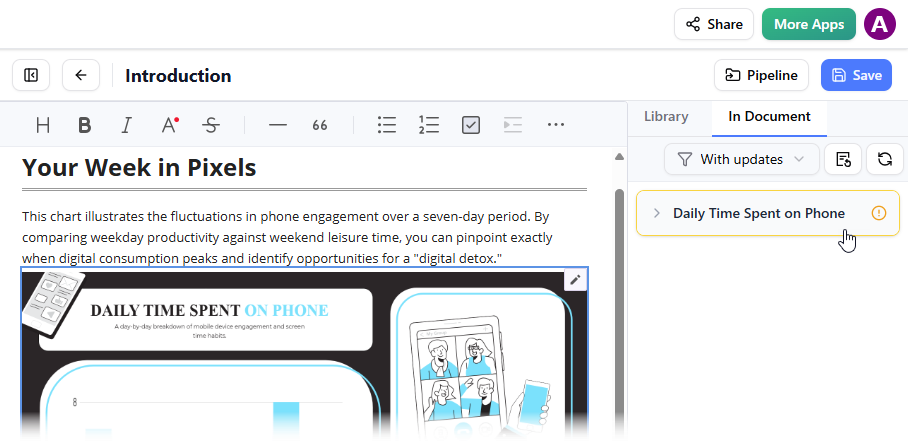
Open the In Document tab. The “With updates” filter auto-activates, showing modified artifacts.
-
Click your updated visual to see available revisions.
-
Click the latest revision—or hit Update to latest revision—to instantly swap the diagram.
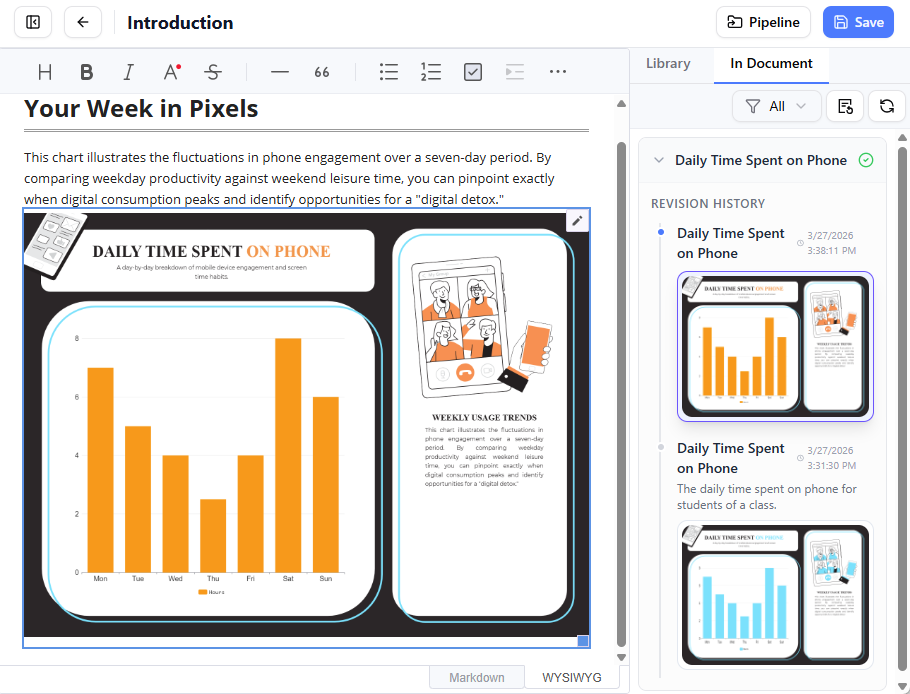
✨ Pro Tip: I add version notes in the Pipeline comments (e.g., “v2.1: Added mobile flow”) so my team knows exactly what changed without opening the diagram.
💡 My Top Tips for Maximum Impact
-
Name artifacts clearly: Use descriptive comments in the Pipeline to avoid “Diagram_Final_v3_REALLYFINAL.png” syndrome.
-
Leverage the “In Document” filter: When updating docs, this filter instantly surfaces artifacts with new revisions.
-
Collaborate confidently: Share Pipeline access with teammates so everyone works from the latest source.
-
Use for all visual types: This isn’t just for UML! I’ve used it for wireframes, org charts, social media graphics, and process flows.
-
Bookmark your Pipeline: Quick access = faster updates.
🔗 Related Resources & References
- Visual Paradigm OpenDocs Platform: The premier diagram-aware knowledge and document management platform that integrates a full diagramming engine directly into the document editor.
- Exporting diagrams from Visual Paradigm Desktop to OpenDocs: A comprehensive guide for desktop users looking to sync their diagrams with OpenDocs via the Pipeline.
- Exporting diagram images from Visual Paradigm Chatbot to OpenDocs: Learn how to leverage AI-generated diagrams from the Chatbot and seamlessly integrate them into your OpenDocs documentation.
- The Pipeline: A Secure Repository for Visual Paradigm Ecosystems: Defines the Pipeline as a secure, centralized repository for managing diagrams and documents created across the Visual Paradigm ecosystem.
- Mastering the Pipeline in Visual Paradigm OpenDocs: A Complete Guide to Streamlined Knowledge Management: Explains how the Pipeline feature bridges the gap between diagram creation and knowledge management workflows.
- Sync AI Diagrams to OpenDocs Pipeline: Exporting UML and Flowcharts: Guides users on creating or refining diagrams (like UML or flowcharts) and exporting them directly to the OpenDocs Pipeline.
- Introducing Visual Paradigm AI Chatbot: Generating SWOT Analysis with AI: Introduces the AI chatbot capability, allowing users to generate diagrams like SWOT analyses by typing prompts instead of drawing manually.
- Sending to OpenDocs Pipeline via the Visual Paradigm AI Chatbot Interface: Describes the “Send to OpenDocs Pipeline” popup functionality within the AI Chatbot, including optional naming fields.
- Visual Paradigm OpenDocs: The Complete Guide to AI-Powered Knowledge Management and Diagram Generation: A comprehensive guide covering the integration of AI for knowledge management and automated diagram generation within OpenDocs.
- Visual Paradigm OpenDocs Features: Create, Organize, and Share Intelligent Documents: Highlights core features for creating, organizing, and sharing documents and diagrams using an intelligent, AI-powered knowledge base.
- OpenDocs: An AI-Powered Knowledge Platform Release Update: Announces the release and capabilities of OpenDocs as a new AI-powered knowledge platform.
- AI Deployment Diagram Generator Integration with OpenDocs: Details the specific release of an AI deployment diagram generator designed to integrate seamlessly with OpenDocs.
- Visual Paradigm AI Official Portal: The official portal for accessing Visual Paradigm’s suite of AI tools and services.
🎉 Final Thoughts
Since adopting this VP Online → Pipeline → OpenDocs workflow, I’ve reclaimed hours each week previously spent on manual file management. My documentation stays accurate, my team stays aligned, and my diagrams stay beautiful—no matter how many iterations we go through.
If you’re a Visual Paradigm Online Combo Edition user, I highly encourage you to try this integration today. Start with one diagram, follow the steps above, and experience that “aha!” moment when your cloud workflow finally clicks into place.
Happy diagramming, and even happier documenting! 🚀✨