


Mastering AI Presentation Creation with Visual Paradigm: A Guide to Image Generation and Sharing
Visual Paradigm has recently unveiled a suite of powerful updates to its Markdown Presentation Maker, solidifying its position as a top-tier AI presentation tool. These enhancements focus on streamlining workflow, boosting creativity through AI image generation, and facilitating seamless collaboration. Whether you are an educator, a marketer, or a business professional, this tool allows you to transform simple ideas into stunning slideshows effortlessly. This article provides a comprehensive, step-by-step tutorial on navigating these new features to create professional-grade presentations.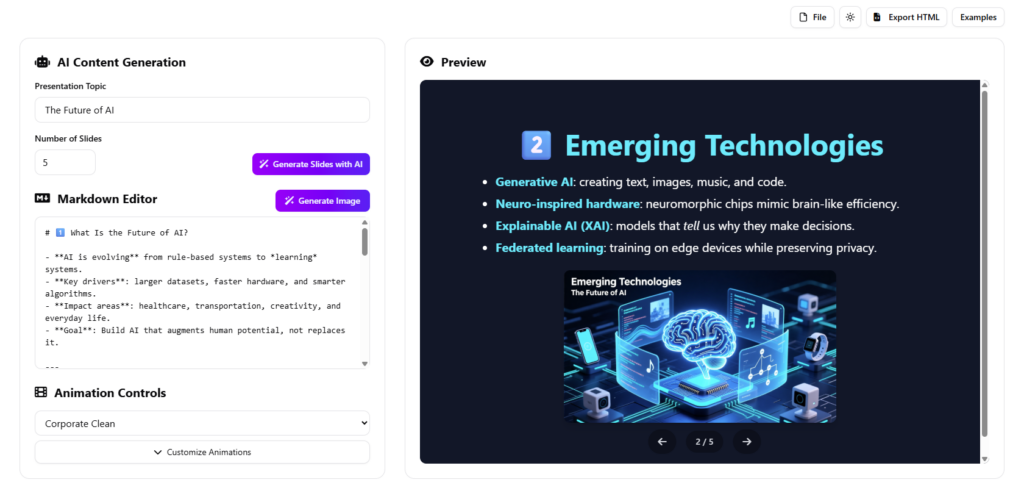
Key Concepts
Before diving into the tutorial, it is essential to understand the core components that make this tool effective:
- Markdown Presentation Maker: A tool that converts Markdown text-based content into formatted presentation slides automatically, reducing the time spent on design.
- AI Image Generation: A newly integrated feature that uses artificial intelligence to create custom visuals based on text prompts directly within the presentation editor.
- Aspect Ratio: The proportional relationship between an image’s width and height (e.g., 16:9, 1:1), crucial for fitting images perfectly onto different slide layouts.
- Workspace Saving: The ability to save projects to a personal cloud-based workspace, ensuring data persistence and accessibility across different sessions.
Guidelines: Step-by-Step Tutorial
Follow these steps to maximize the potential of the updated Markdown Presentation Maker.
Phase 1: Utilizing AI Image Generation
The most significant update is the ability to generate images without leaving the application. This eliminates the need for external stock photo sites.
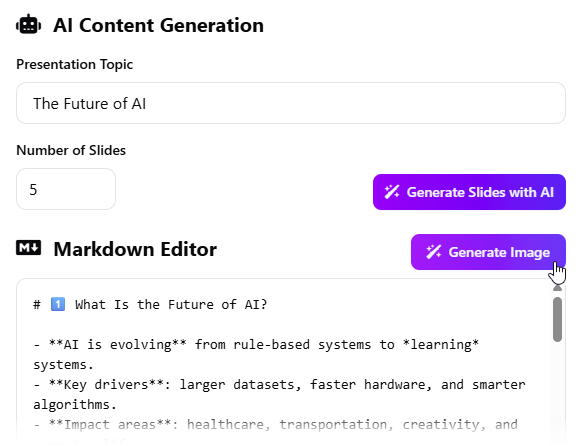
- Access the Generator: While editing your slide, click on the button labeled “Generate Image”. This will open the AI Image Generator popup window.
- Input Your Vision: In the prompt field, describe the image you want to create.
Note: If you are unsure what to write, click “Generate Prompt”. The AI will analyze your presentation’s context and suggest a relevant description for you. - Configure Settings:
- Add Alt Text for accessibility purposes.
- Select your preferred Aspect Ratio. Options include 1:1, 16:9, 9:16, 4:3, 3:4, 3:2, or 2:3. Choose the one that best fits your slide layout.
- Generate the Visual: Click the “Generate Image” button. The AI will take a moment to craft a high-quality visual.
- Review and Refine: If the result isn’t perfect, click “Regenerate Image” to try again with a refined prompt.
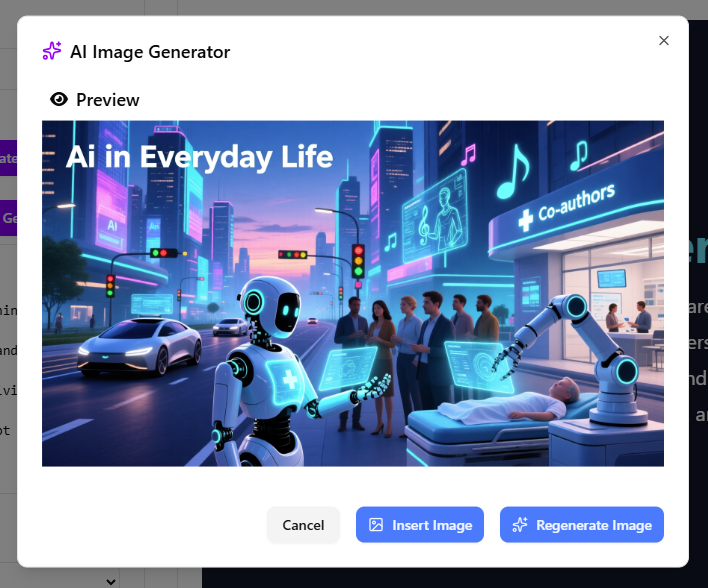
- Insert: Once satisfied, click “Insert Image” to place the visual directly onto your active slide in the Preview pane.
Phase 2: Saving Your Progress
Visual Paradigm has formalized support for saving directly to your personal workspace, ensuring you never lose your work.
- Navigate to File: Locate the menu bar at the top of the interface.
- Select Save: Click on File > Save.
- Confirm Storage: Your project is now securely stored in your personal workspace, allowing you to close the browser and reopen the project later for continuity.
Phase 3: Sharing Your Presentation
Collaboration is now effortless with the new URL generation feature.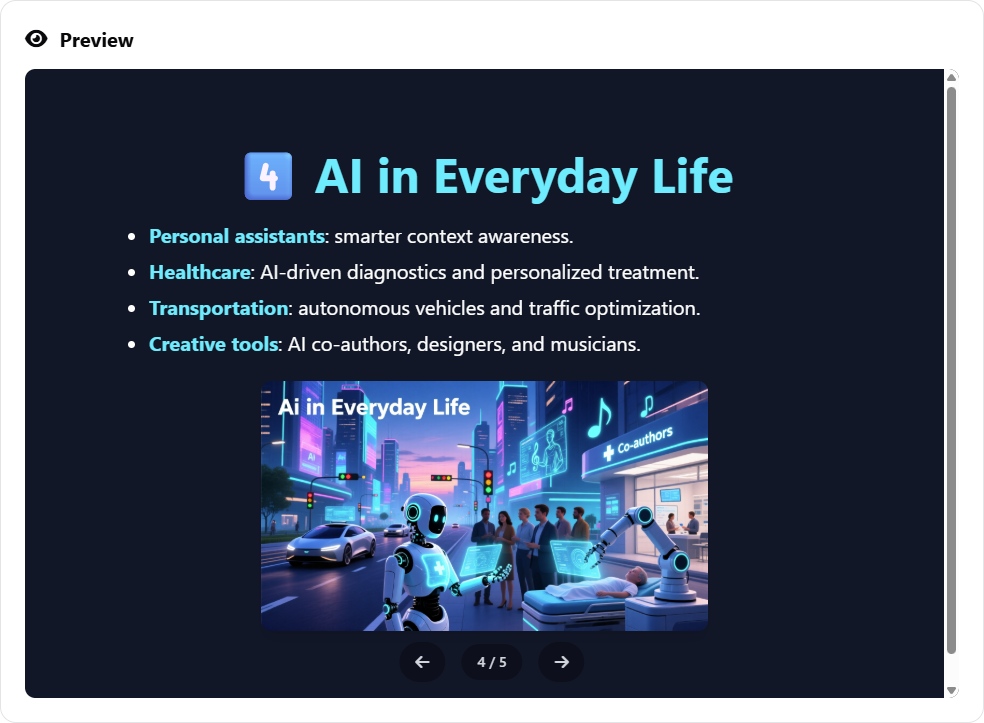
- Ensure Saved Status: Make sure you have saved your file as described in Phase 2.
- Generate Link: Go to the menu and select File > Share.
- Distribute: Copy the unique URL generated. Send this link to colleagues, clients, or your audience. They will get instant access to your presentation without needing to download large files.
Tips and Tricks
Optimize your workflow with these expert recommendations:
- Leverage Contextual AI: Don’t struggle with writer’s block when creating image prompts. Use the “Generate Prompt” feature. It reads your slide content and suggests an image description that matches the tone and subject matter of your deck.
- Match Aspect Ratios to Devices: If you are presenting on a standard monitor, stick to 16:9. If you are creating content for mobile viewing (like social media stories), use 9:16.
- Monitor Screen Real Estate: The update has expanded the screen width to utilize the full available space. Use this extra room to better visualize your slide previews and edit more efficiently.
- Watch for Alerts: The system now includes alerts about potential content overwrites when generating slides with AI. Pay attention to these warnings to avoid losing manual edits.
Checklist
Use this checklist to ensure you have fully utilized the new capabilities of the Markdown Presentation Maker:
- [ ] Have I created a custom visual using the “Generate Image” button?
- [ ] Did I use the “Generate Prompt” feature to align the image with my slide content?
- [ ] Is the image aspect ratio optimized for my slide layout (e.g., 16:9)?
- [ ] Have I saved the presentation to my personal workspace via File > Save?
- [ ] Have I generated a shareable URL via File > Share for collaboration?
- [ ] Did I check the exported HTML output to ensure it matches the preview pane?