


We are excited to share a significant quality-of-life update for users of the AI Flipbook Maker Tool. In the world of digital publishing, presentation is everything. Previously, users occasionally encountered issues where embedded flipbooks appeared partially cropped due to default viewer height settings. We are pleased to announce that this issue has been fully resolved.
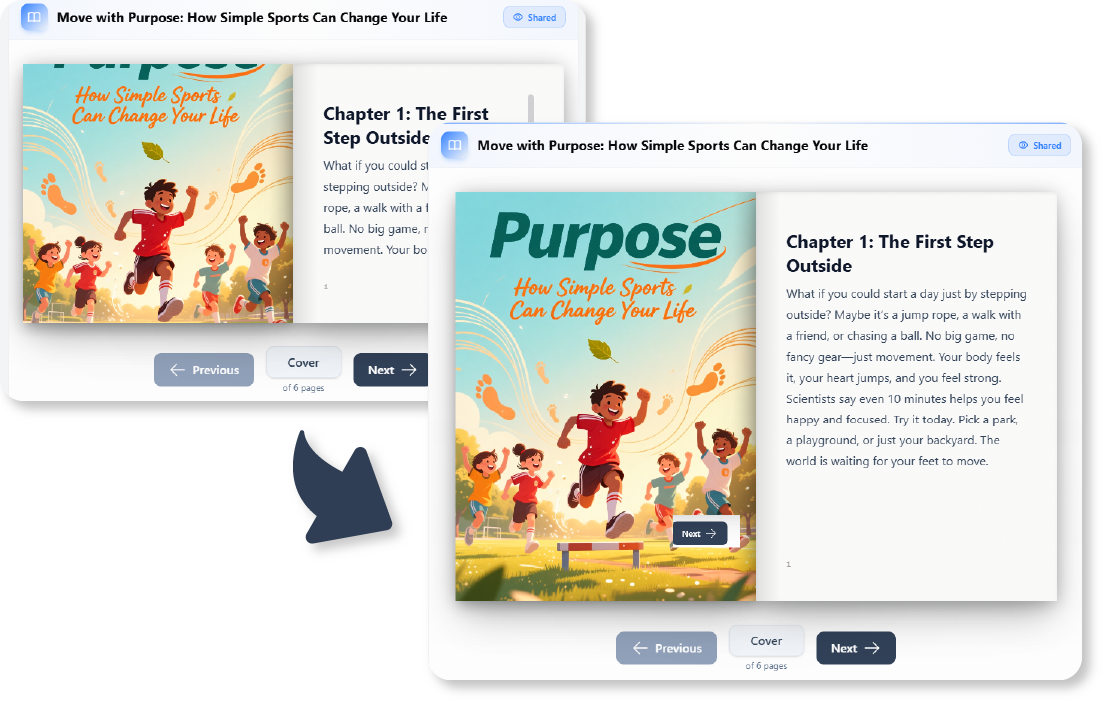
With the latest update, embedded flipbooks now appear in their full size by default. This ensures no content is cut off and that your digital publications display cleanly and exactly as intended on your website or blog. This guide will walk you through how to utilize this new capability and provide best practices for embedding your AI-generated books.
The Update: What Has Changed?
Before diving into the tutorial, it is important to understand the technical improvement. Previously, the container for an embedded flipbook might not have dynamically adjusted to the aspect ratio of the generated book, leading to a “cropped” look where the bottom of the page might be hidden.
The Resolution:
- Automatic Adjustment: The flipbook frame now automatically adjusts to show the entire book.
- No More Clipping: The updated embed code logic ensures the flipbook fits properly within your website’s container without manual resizing.
- Professional Finish: Whether viewing a story, a company document, or a presentation, the experience is now consistent and polished.
Step-by-Step Tutorial: Generating and Embedding Your Flipbook
Follow these steps to create a flipbook using the AI Flipbook Maker and embed it perfectly on your site.
Step 1: Access the AI Flipbook Maker
Navigate to the AI Flipbook Maker tool. This platform allows you to turn raw ideas into interactive digital books instantly.
Step 2: Input Your Requirements
To generate your content, provide the necessary inputs:
- Topic: Enter the main subject of your book.
- Description: Add a short context or specific details you want included.
- Parameters: Set your preferred page count, language, and artistic style for the illustrations.
Step 3: Generate and Review
Click to generate. The AI will create the content and layout. Review the flipbook to ensure the text and images meet your expectations.
Step 4: Get the Embed Code
Once satisfied, look for the Share or Embed options.
Note: You no longer need to manually calculate aspect ratios or force specific height parameters to avoid cropping. The new system handles this validation for you.
Step 5: Place the Code on Your Site
Copy the provided HTML snippet and paste it into the HTML editor of your blog (WordPress, Wix, Squarespace, etc.) or your custom website code. Publish the page to see the result.
Guidelines for Optimal Embedding
While the update handles the heavy lifting regarding dimensions, following these guidelines ensures the best user experience:
- Container Width: Ensure the HTML container (div) on your website where you paste the code is set to a flexible width (e.g., 100%). The flipbook will fill the available width and adjust its height automatically to maintain the aspect ratio.
- Mobile Responsiveness: Test your embedded page on a mobile device. The full-size update is particularly beneficial here, as it prevents mobile browsers from cutting off the bottom navigation buttons of the flipbook.
- Minimal Styling: Avoid adding
overflow: hiddenCSS properties to the immediate parent container of the flipbook, as this could theoretically conflict with the new auto-sizing logic.
Examples: Before vs. After
To visualize the impact of this update, consider the following scenarios:
The “Before” Scenario
Code Snippet (Legacy Behavior):
An embed might have defaulted to a fixed height (e.g., 500px). If the generated book was A4 format, the bottom 20% of the page—often containing page numbers or footer text—would be cut off, requiring the user to scroll within the iframe.
The “After” Scenario (Current)
Behavior:
The embed detects the document size. If the book requires 800px of height to display fully at the current width, the frame expands to 800px automatically.
- Result: The reader sees the full cover, all text, and navigation arrows without needing to interact with scrollbars.
- Benefit: A seamless integration that looks like a native part of your webpage rather than a restricted window.
Checklist: Auditing Your Flipbook Embeds
Use this checklist to ensure your embedded content is taking full advantage of the new update:
- [ ] Re-embed Legacy Content: If you have old flipbooks embedded that look cropped, try refreshing the embed code from the tool to apply the new full-size logic.
- [ ] Check Container Width: Verify that your website’s layout allows the embed at least 600-800px of width for the best readability.
- [ ] Verify Full Visibility: Load your page and confirm that the bottom of the flipbook (including page numbers) is visible without scrolling.
- [ ] Test Interaction: Click the page turning animations to ensure the frame remains stable during transitions.
- [ ] Mobile Audit: Open the page on a smartphone to ensure the full-size display scales down correctly for vertical screens.
By leveraging this update, you can confidently share stories, educational materials, and business documents, knowing that your audience is getting the premium reading experience they deserve.
- Visual Paradigm Flipbook Maker – Create Interactive Digital Flipbooks: A powerful online tool that enables users to convert documents into interactive, visually engaging flipbooks with realistic page-flipping effects.
- Learn How to Create Flipbooks with Visual Paradigm: An educational resource that guides users through the process of creating dynamic flipbooks using Visual Paradigm’s intuitive tools.
- Create Your Flipbook with Visual Paradigm – Step-by-Step Guide: A detailed guide to help users quickly create professional-looking flipbooks from PDFs and other documents using Visual Paradigm’s online platform.
- Flipbook Maker Quick Start Guide – Visual Paradigm Community: A beginner-friendly guide from the Visual Paradigm community that walks users through the essential steps to get started with flipbook creation.
- Flipbook Templates & Assets Library – Visual Paradigm: A curated collection of ready-to-use templates and design assets to accelerate flipbook creation with consistent, professional styling.
- Publish Your Documents as Interactive Flipbooks – Visual Paradigm: Explore how Visual Paradigm allows users to publish reports, brochures, and presentations as engaging flipbooks for web and mobile sharing.
- Community User Books – Visual Paradigm: A hub for user-generated content and community-driven guides, including flipbook tutorials, best practices, and real-world use cases.
- Elevate Your Digital Presence with Visual Paradigm Flipbook Maker: A blog post highlighting how flipbooks enhance engagement and professionalism in digital content delivery across industries.
- Flipbook Maker: A Game-Changer for Interactive Content: An insightful blog exploring how Visual Paradigm’s flipbook tool transforms static documents into immersive, interactive experiences.
- Self-Hosted Flipbook Slideshow: Transform Documents into Interactive Presentations: Convert PDFs and documents into engaging, interactive flipbook slideshows with full control and customization via self-hosting.
- Why Visual Paradigm Online’s Flipbook Maker Stands Out: An overview of the unique features and benefits of Visual Paradigm Online’s flipbook tool, ideal for creating interactive reports and KPI presentations.