


I’ll be honest—I used to dread the blank canvas. Every time I started a new project, I’d stare at the screen, unsure where to begin. Then I discovered Visual Paradigm AI, and everything changed. What started as a simple AI diagram tool quickly evolved into my go-to multi-platform AI ecosystem for everything from brainstorming to building production-grade software models.
Here’s how I actually use it—step by step—across different stages of my work, and why it’s become my secret weapon.
🌱 Step 1: I Start with the AI Chatbot—My Brainstorming Co-Pilot
“How do I model a user login flow with 2FA and session timeout?”
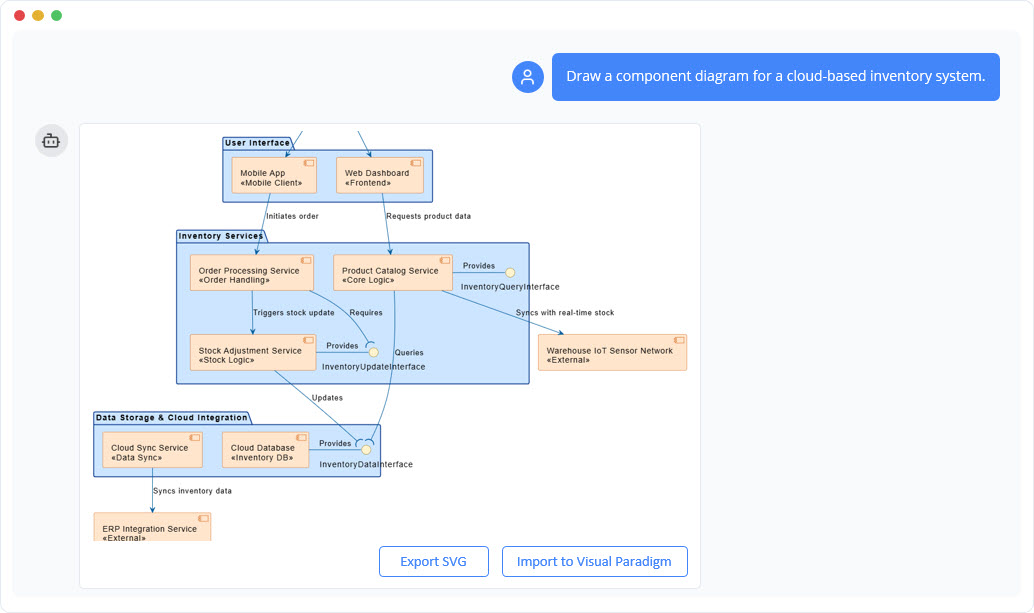
Instead of struggling to draw the first line, I just asked the AI Chatbot—and boom, a clean sequence diagram appeared in seconds.
It didn’t just generate a picture. It understood my intent, asked clarifying questions like “Should the 2FA be SMS-based or app-based?”, and even suggested improvements like adding a “failed attempts lockout” rule.
I love how it feels like I’ve got a technical partner who speaks my language—no jargon, just clarity.
💬 Pro Tip: I often start with “Help me design a [process/system]” and then refine it with follow-ups like “Make the error handling more robust” or “Show me how the admin role fits in.”
This is how I overcame blank canvas syndrome—and it’s now my favorite way to kick off any project.
📚 Step 2: I Build Living Documentation in OpenDocs
Once the concept is clear, I move to OpenDocs—my team’s internal knowledge hub.
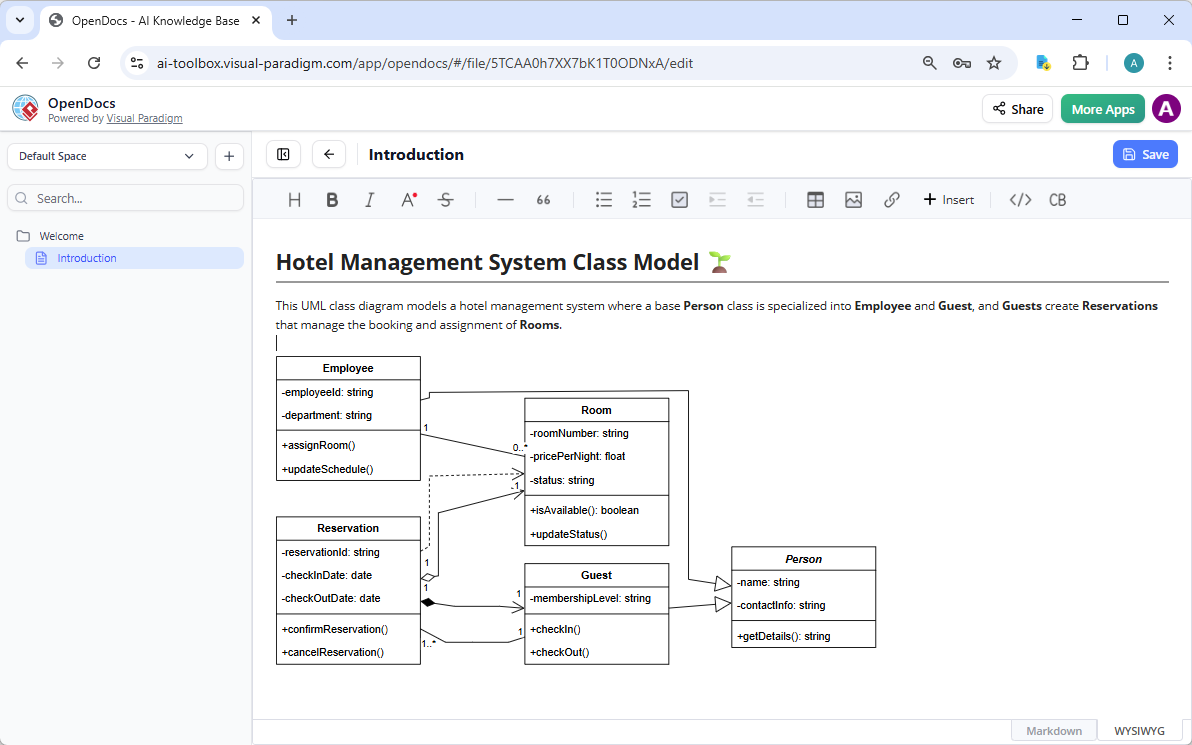
I paste the AI-generated diagram into a document about our new authentication system. But here’s the magic: the diagram isn’t a static image. It’s live.
My teammate can click it, edit the flow, add a new branch, or even ask the AI: “Make this more secure—add a multi-step verification step.”
We use it in:
-
Onboarding guides
-
Architecture decision records (ADRs)
-
Strategy wikis
🤯 The best part? When we update the diagram, the change reflects everywhere it’s embedded. No more outdated screenshots or version chaos.
It’s like Notion meets live modeling—and it’s transformed how we collaborate.
🛠 Step 3: I Go Full Engineering in VP Desktop (My Real Workhorse)
Now comes the serious part: building something that actually works.
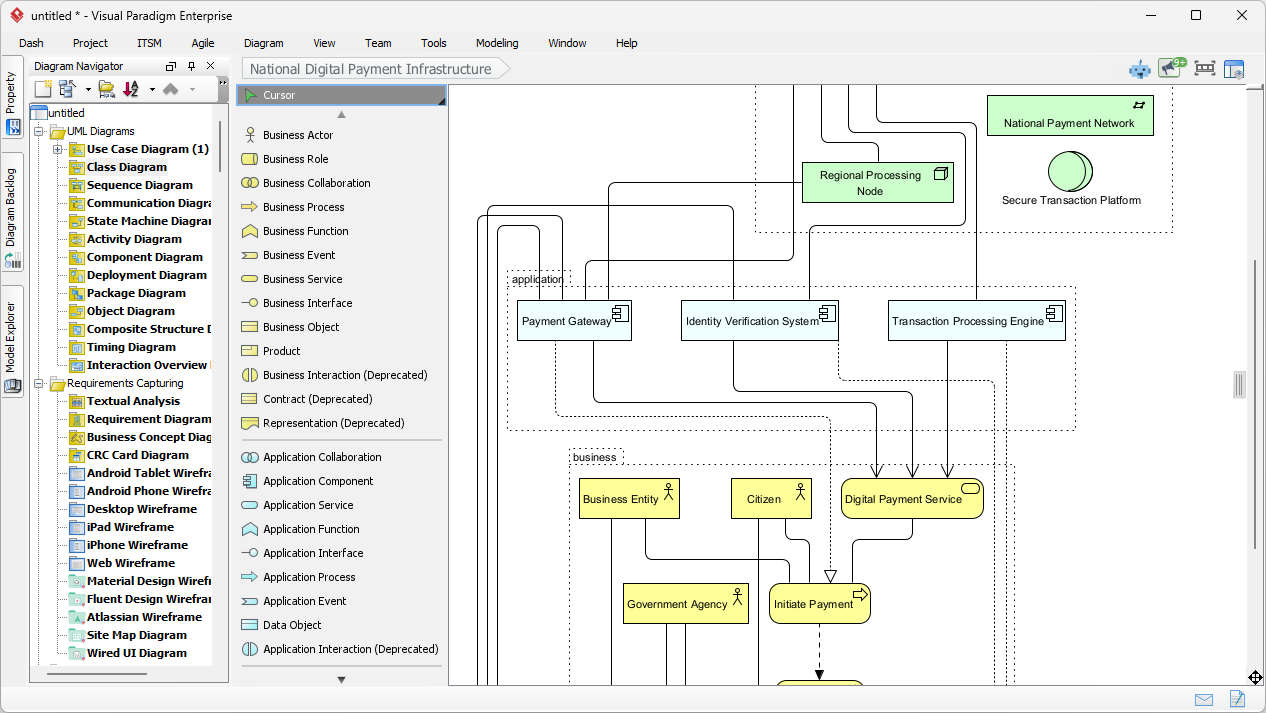
I take the diagram from OpenDocs and open it in VP Desktop—the full-featured modeling IDE.
Here’s what happens next:
-
I connect it to a database schema.
-
I generate Java classes from the UML class diagram.
-
I auto-generate sequence diagrams based on real method calls.
-
I trace requirements from use cases to implementation.
It’s not just about drawing. It’s about engineering with precision.
💡 One time, I redesigned a payment workflow. The AI gave me a starting point in the Chatbot. I refined it in OpenDocs. Then I opened it in VP Desktop and generated 300+ lines of clean, testable code—all from a single model.
That’s AI-powered development, not just AI-assisted drawing.
🎯 Step 4: I Use Specialized Web Apps for Methodology-Driven Work
When I’m working on architecture documentation—especially for a cloud migration—I turn to C4 PlantUML Studio, one of Visual Paradigm’s AI-powered web apps.
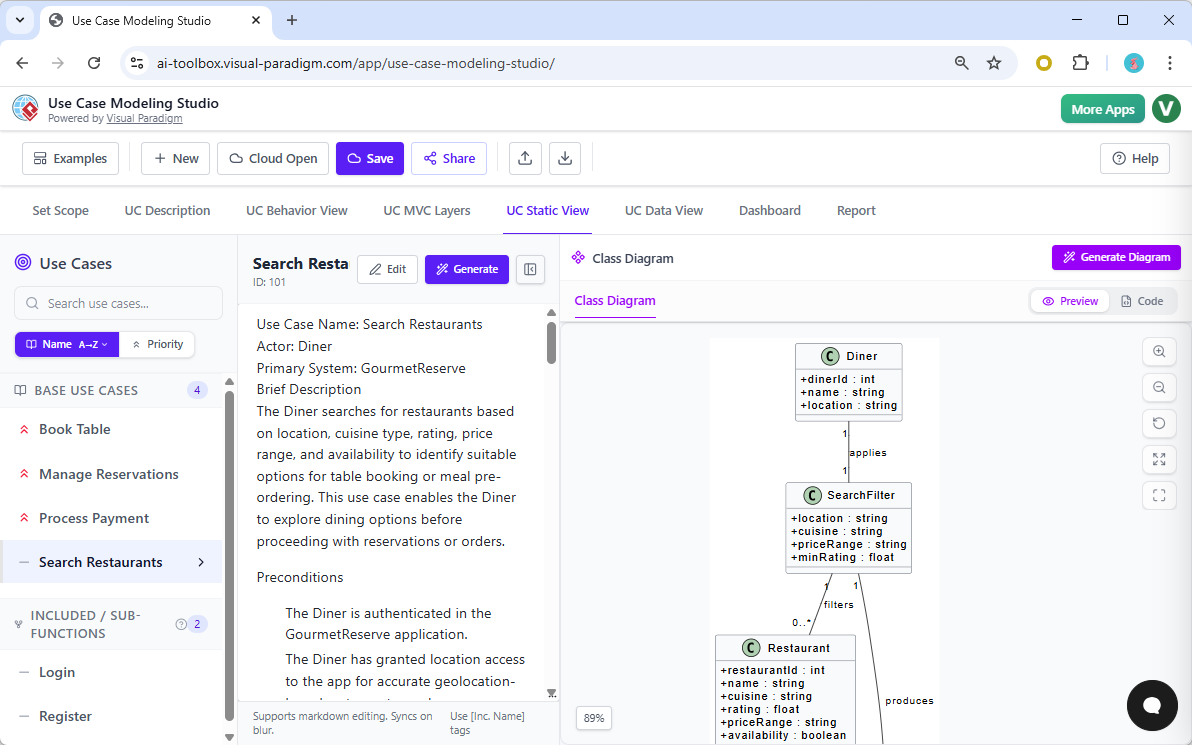
It’s like a guided tour:
-
Step 1: Define the system context.
-
Step 2: Add containers (e.g., web app, API, database).
-
Step 3: Break down components and add code snippets.
The AI enforces structure and ensures I don’t miss a level of abstraction. It even checks for consistency across diagrams.
✅ I now produce C4 reports in half the time—without the guesswork.
And for business strategy? I use the SWOT & PEST Analysis Studio to create professional-looking, AI-enhanced infographics—perfect for executive presentations.
🔄 Why This Hybrid Workflow Works for Me
Here’s my personal AI workflow:
-
Chatbot → Brainstorm & explore
-
OpenDocs → Collaborate & document
-
Web App Studio → Build with structure (C4, use cases, etc.)
-
VP Desktop → Engineer, trace, generate code
It’s not about choosing one tool. It’s about using the right tool at the right stage—and letting AI do the heavy lifting at every step.
🎯 Why I Now Trust Visual Paradigm AI Over Other Tools
Let me be clear: I’ve tried Mermaid, diagrams.net, and other AI diagram generators.
They all give me a nice picture—but then I can’t edit it. I can’t trace it. I can’t generate code from it.
Visual Paradigm is different. The models are alive:
-
A change in a Use Case diagram updates related Activity and Sequence diagrams.
-
A model in OpenDocs syncs with VP Desktop.
-
A diagram in the C4 Studio follows best practices—no manual cleanup needed.
It’s not just AI drawing. It’s AI engineering.
🚨 My Honest Downsides (So You Don’t Get Surprised)
No tool is perfect. Here’s what I’ve learned:
-
VP Desktop has a learning curve—it’s powerful, but it took me a few weeks to feel comfortable.
→ My fix: Start small. Use the Chatbot first. Then slowly explore Desktop. -
Platform fragmentation is real—you do have to choose where to start.
→ My fix: I now start in the Chatbot, then export to OpenDocs, and finally open in Desktop for engineering.
✅ Final Thoughts: This Isn’t Just a Tool—It’s My AI Partner
Visual Paradigm AI has become more than software. It’s my co-creator, editor, and engineer—all in one.
From my first idea to final code, I no longer waste time on messy, untraceable diagrams. I build models that evolve, connect, and deliver.
🎯 If you’re a developer, architect, product manager, or even a strategist—try the Chatbot first.
Then see how far you can go with OpenDocs, Web Apps, and VP Desktop.
Because in today’s world, the best models aren’t just visual. They’re intelligent, collaborative, and production-ready.
And now? I finally feel like I’ve got the right tools to build real systems—not just pretty pictures.
🌐 P.S. I still use the AI Chatbot to brainstorm my weekend plans.
Yes, really.
“Plan a weekend hiking trip with friends, including a map, schedule, and gear checklist.”
It’s that good. 😄
Visual Paradigm AI didn’t just help me design software. It helped me think better.
- AI Chatbot Feature – Intelligent Assistance for Visual Paradigm Users: This resource introduces the AI-powered chatbot functionality designed to provide users with instant guidance, task automation, and enhanced productivity.
- Visual Paradigm Chat – AI-Powered Interactive Design Assistant: An interactive AI interface that helps users generate diagrams, write code, and solve design challenges in real time through a conversational assistant.
- AI Chatbot for Diagramming: How It Works with Visual Paradigm: This article explains how the chatbot acts as an AI-powered modeling assistant that turns natural language directly into diagrams without requiring knowledge of specific syntax.
- Introducing Visual Paradigm AI Chatbot: A Smarter Way to Create Diagrams: This update highlights how the chatbot enables natural language diagram generation, smart editing, and contextual analysis for enterprise modeling.
- Visual Paradigm AI Chatbot: Turn Your Ideas into Diagrams Instantly: A guide highlighting the assistant’s ability to visualize concepts through conversational prompts, allowing designs to grow from raw text into full models.
- How to Turn Requirements into Diagrams with an AI Chatbot: This article explores the workflow of converting project requirements into clear visual models through a continuous conversational interface.
- How AI Chatbot Can Help You Learn UML Faster: A resource detailing how the chatbot provides an interactive learning environment where users can practice UML concepts and receive instant feedback.
- Case Study: Enhancing System Modeling Efficiency with Visual Paradigm’s AI-Powered Chatbot: This case study demonstrates how the chatbot improves productivity and accuracy in system modeling by enabling conversational diagram creation.
- Visual Paradigm AI Chatbot: The World’s First Purpose-Built AI Assistant for Visual Modeling: This article highlights the launch of a groundbreaking AI assistant tailored specifically for visual modeling with intelligent guidance.
- Mastering Sequence Diagrams with Visual Paradigm: AI Chatbot Tutorial: A beginner-friendly tutorial that uses a real-world e-commerce case study to demonstrate conversational diagramming with the AI assistant.