
This guide provides a complete workflow for utilizing the Visual Paradigm AI-Assisted UML Class Diagram Generator. Designed to bridge the gap between abstract ideas and professional software architecture, this tool combines an intuitive, step-by-step wizard with embedded Artificial Intelligence to simplify UML diagram creation, analysis, and documentation. Whether you are an educator, developer, business analyst, or hobbyist, this tool empowers you to create high-quality designs without requiring deep expertise in UML syntax or complex installation processes.
1. Tool Overview and Purpose
The Visual Paradigm’s AI-Assisted UML Class Diagram Generator simplifies software design by merging visual, form-based interactions with powerful AI capabilities. Its primary goals are:
-
Reducing Complexity: Eliminates the need to learn syntax-heavy formats like PlantUML from scratch.
-
Accelerating Workflow: Leverages AI to auto-generate initial structures, summaries, and critiques.
-
Deepening Understanding: Provides educational insights and best practices directly within the workflow.
-
Ensuring Quality: Performs automated validation and generates detailed analysis reports.
The tool is browser-based, meaning no software installation is required, making professional UML creation accessible from any device with an internet connection.
2. The 10-Step Creation Wizard
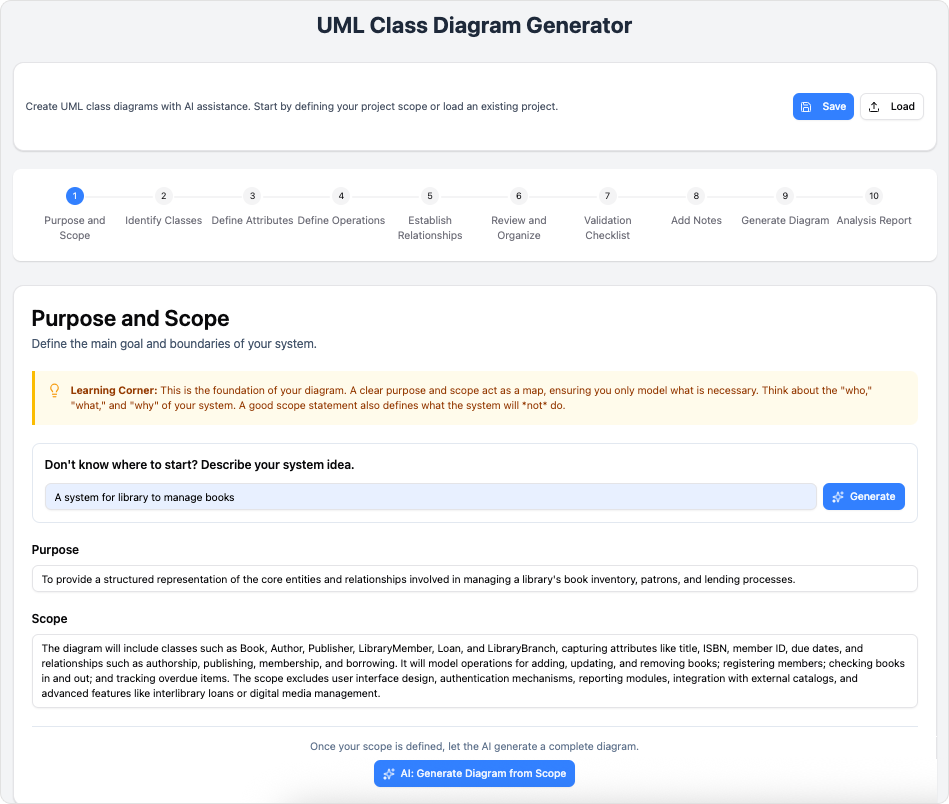
The tool guides users through a logical, end-to-end workflow designed to ensure consistency and completeness.
Step 1: Purpose and Scope
-
Action: Input a high-level idea or define the detailed scope of your system.
-
AI Feature: The AI analyzes your input to determine the primary purpose of the system or entirely generate the initial diagram structure based on your description.
Step 2: Identify Classes
-
Action: List the main entities or objects that represent the core components of your system.
-
AI Feature: AI can suggest relevant classes based on the scope provided in Step 1.
Step 3: Define Attributes
-
Action: Specify the properties for each class, including data types (e.g., String, Integer), visibility, and constraints.
Step 4: Define Operations
-
Action: List the methods, behaviors, and functions associated with each identified class.
Step 5: Establish Relationships
-
Action: Define how classes interact with one another. This includes:
-
Associations: Simple connections between classes.
-
Aggregations/Compositions: “Has-a” or “Part-of” relationships.
-
Inheritance: “Is-a” generalization/specialization hierarchies.
-
Step 6: Review and Organize
-
Action: Perform a manual consolidated review of the class names, attributes, and relationships to ensure logical consistency and naming conventions.
Step 7: Validation Checklist
-
Action: Run automated checks against UML best practices.
-
AI Feature: The system highlights potential design issues, missing relationships, or attribute inconsistencies and suggests fixes.
Step 8: Add Notes
-
Action: Add manual clarifications or design rationale for specific parts of the diagram.
-
AI Feature: AI can automatically generate summary notes explaining the design decisions based on the inputs provided.
Step 9: Generate Diagram
-
Action:
-
Visual Preview: Render the diagram as an SVG image.
-
Code View: View and manually edit the raw PlantUML source code for advanced customization.
-
Export: Download the final diagram in various formats (SVG, PNG, etc.).
-
Step 10: Analysis Report
-
Action: Receive a comprehensive AI-powered critique.
-
AI Feature: The report analyzes the entire diagram for maintainability, complexity, and adherence to architectural patterns, offering specific suggestions for improvement.
3. Key Benefits
-
Educational Core: Integrated tips and AI insights help users understand fundamental UML principles while they work.
-
AI-Driven Productivity: Drastically reduces the time spent on boilerplate code by auto-generating initial designs and summaries.
-
Simplified Complexity: Users interact via visual forms rather than wrestling with complex syntax errors.
-
End-to-End Workflow: Covers the entire lifecycle from concept sketching to final documentation.
-
Universal Accessibility: Being browser-based, it works seamlessly on any OS (Windows, Mac, Linux) without downloading bulky software.
-
Collaboration Ready: Save and load projects in JSON format or export to standard formats (PUML, SVG) for team review.